General
Introduction
TruckersBook is a digital application developed to simplify and automate the daily work of drivers. Designed with a focus on efficiency, organization, and ease of use, the app replaces traditional paper records with a modern, fast, and secure system, accessible anywhere with an internet connection.
This system was created to assist the driver in their professional activity.
It is extremely important that the driver keeps the records of their activity, whether for simple consultation or for more serious situations such as an accident.
It is normal that, during a police inspection, some data related to the activity or a specific document may be requested. This is the right place to manage all of that.
Designed for drivers all around the world, TruckersBook gathers in one place all the essential tools for daily professional work:
- Trip management
- Daily activity management
- Driving times
- Statistics
- Payment management
- Driver management
- Notepad
- Automatic list of worked days
- Export data for paper storage
- CMR generator
- Among others...
The main goal of the application is to allow the driver to work in a more organized way, with fewer errors, less paperwork, and faster completion and consultation of information. All data is stored securely on the server, ensuring permanent access and synchronization between devices.
TruckersBook was developed with the individual driver in mind, but also small and large transport companies, offering a flexible, intuitive, and adaptable system for the needs of every user.
This manual clearly explains all the features of the application: how to navigate through menus, how to create records, how to access information, and how to make the most of the available tools.
It is important to note that this system is constantly evolving and is developed by drivers. We kindly ask for your understanding in the event of any errors, which can be reported here through this platform.
And if you have any suggestions, we would be grateful to hear from you.
Safe miles!
Avalia este artigo para sabermos se te ajudámos. Obrigado!
Initial Setup
After registering, you will be prompted to log in.
Log in!
Next step:
You will be presented with 3 plans. Choose the one that best suits your needs.
After successful payment, you will have full access to the platform.
When you enter the app, you will be redirected to the settings.
Some configurations are required for the proper functioning of the app, such as:
- Vehicle plate configuration
- Driver or drivers registration
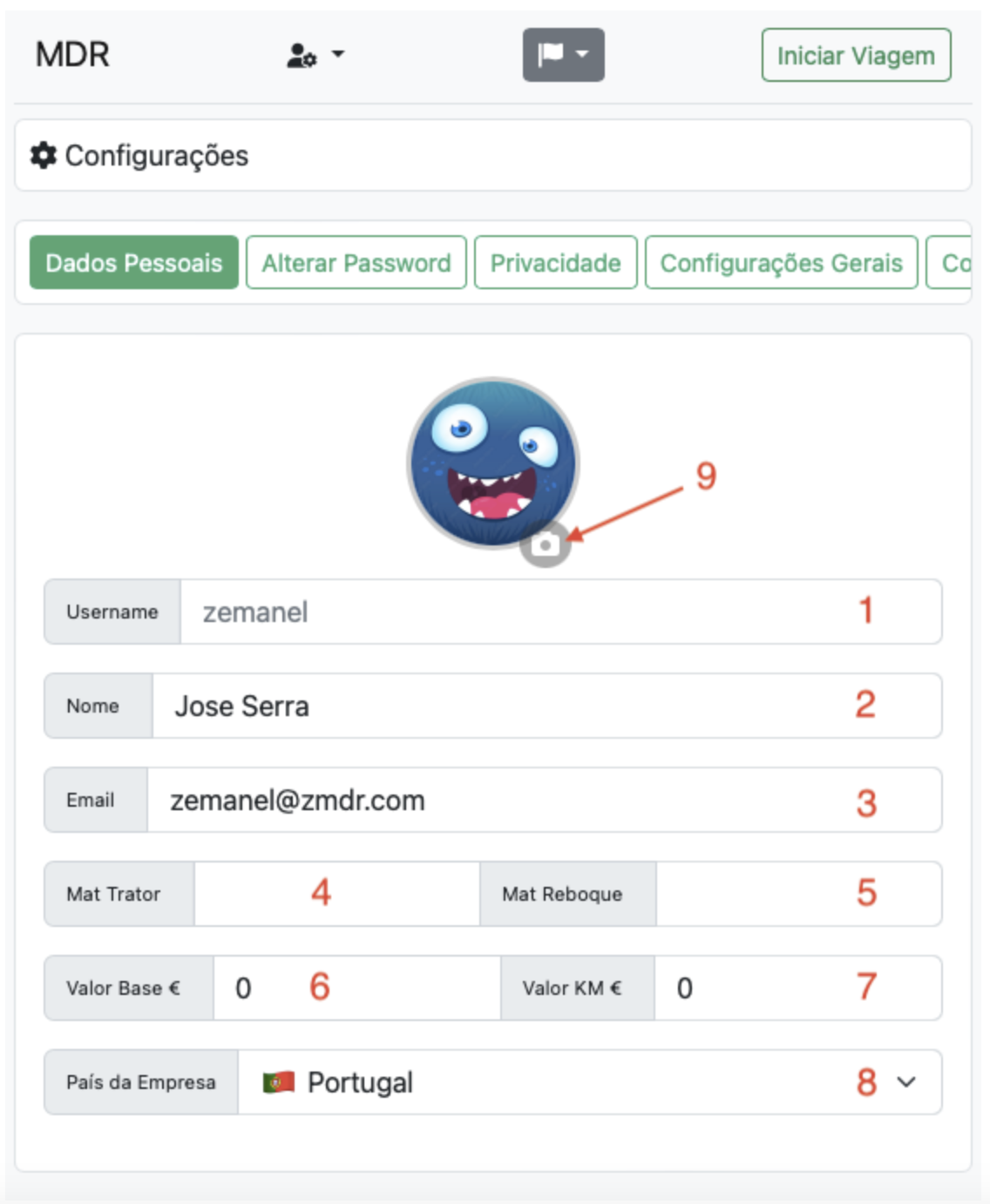
- Username – Not editable
- Name
- Tractor license plate – Required
- Trailer license plate – If applicable
- Base amount – Important for payment calculation
- Km rate – If applicable
- Country of the company you work for
- User profile image
Drivers
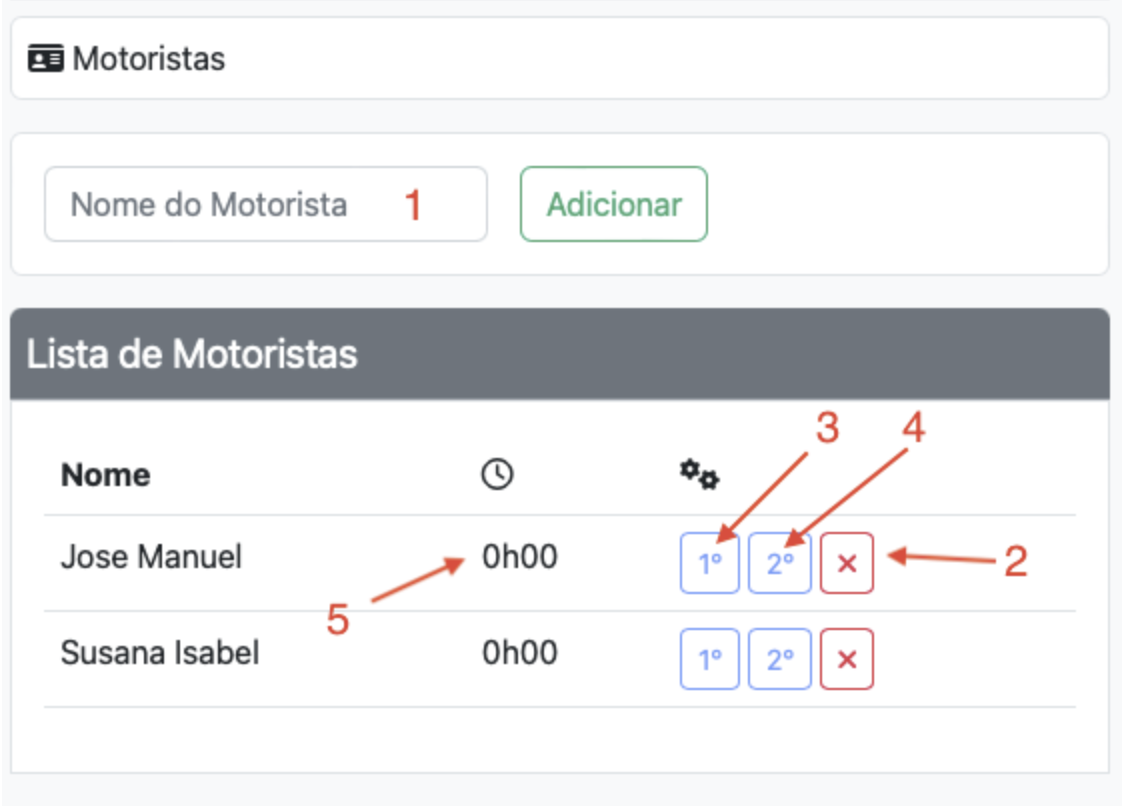
- Add the driver's name
- Enable or disable the driver
- Set as 1st driver
- Set as 2nd driver – In case of multi-crew operation
- The driver's total driving time will be displayed
In the "Base", "Km", and "Extra" fields, if you want to use the Payments module correctly, they must be filled in; otherwise, the calculations will be incorrect.
Avalia este artigo para sabermos se te ajudámos. Obrigado!
General Settings
The Settings page contains several options to adjust the application.

Personal Data – These are the settings for your personal and vehicle information.
Change Password – You can change your password whenever you want.
Privacy – These are your social settings.
General Settings – These are the operational settings of the app.
Invite Friends – This is where you can invite friends and track your invitations.
More Options > Menus – Where you can adjust the main menu of the app.
More Options > Sessions – Shows the times you logged into the app. Failed logins are shown in yellow.
Avalia este artigo para sabermos se te ajudámos. Obrigado!
Privacy
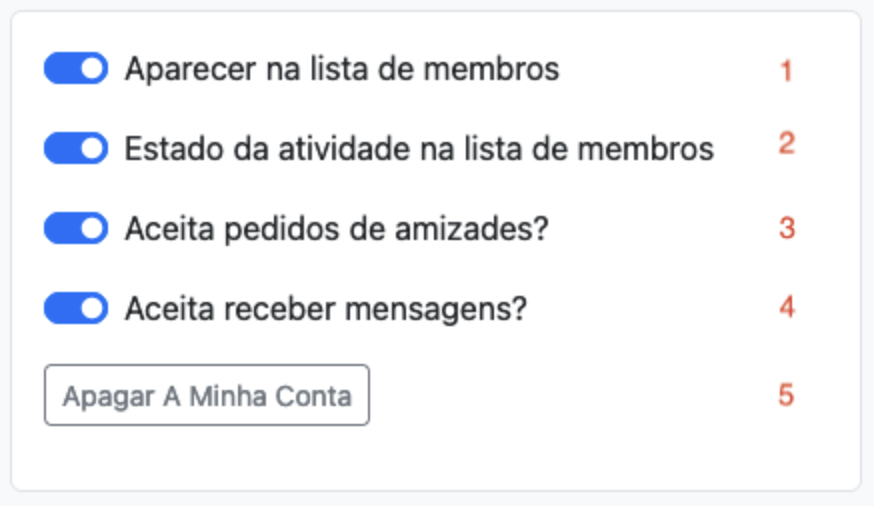
- Whether you want to appear in the user list or not
- Activity status in the user list – if enabled: a grey dot appears next to your name when on break, and a green dot when active.
- Whether you accept friend requests or not
- Whether you accept in app messages or not
- Button to delete your account and all your records – this action is irreversible.
Avalia este artigo para sabermos se te ajudámos. Obrigado!
Trips
Introduction to Trips
In Trips, you can record the same data that you normally report to your employer.
You can register dates, mileage, photos of files related to cargo, payment details for the trip and kilometers, and any other information you find relevant.
It’s important to enter data accurately, as the app performs calculations based on the recorded data.
Trips can be used report by report, or grouped by month, depending on how you prefer to use them.
If trips are used to register a full month, you can enable Automatic Payments, and at the end of the month you'll have the total amount you should receive.
In each trip, you can and should fill in the form fields, record the payments you make during the trip, and attach any related files or anything that happened during the trip.
Avalia este artigo para sabermos se te ajudámos. Obrigado!
Start Trip
-
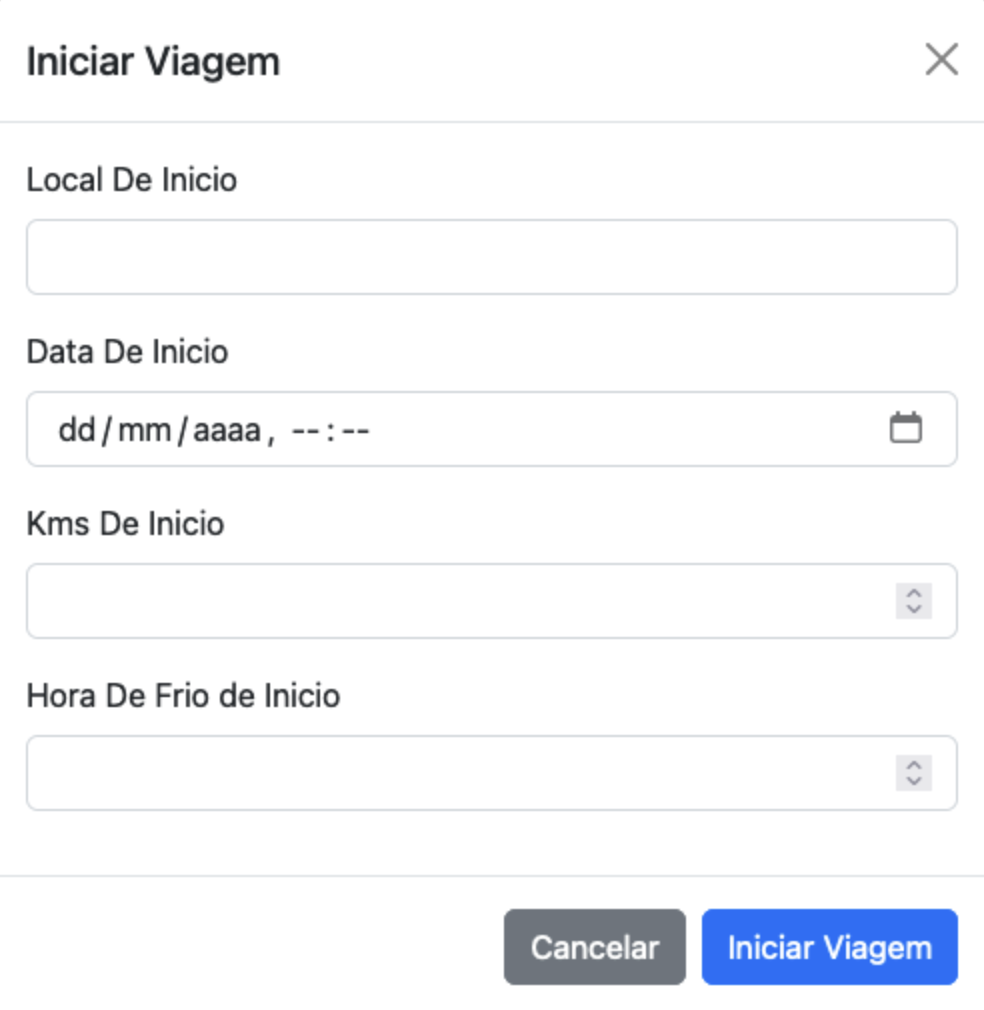
Start Location – This is the place where you begin your trip. It should match the location you record in the report you submit to your company.
-
Start Date (and Time) – The time you begin your trip. It is recommended to use the time zone of your company’s country. The format must be: dd/mm/YYYY, HH:mm (Example: 02/07/2023, 10:15).
-
Start Kilometers – The kilometers shown on your tractor/truck when you begin the trip.
-
Start Reefer Hours – The hours shown on the refrigerated trailer at the beginning of the trip, if applicable.
When you fill out the form, the window will close automatically and you will see that the green button has changed to red and now says "Close Trip" (as shown in the image below).
And the trip is open!!!!!

Avalia este artigo para sabermos se te ajudámos. Obrigado!
View Ongoing Trip
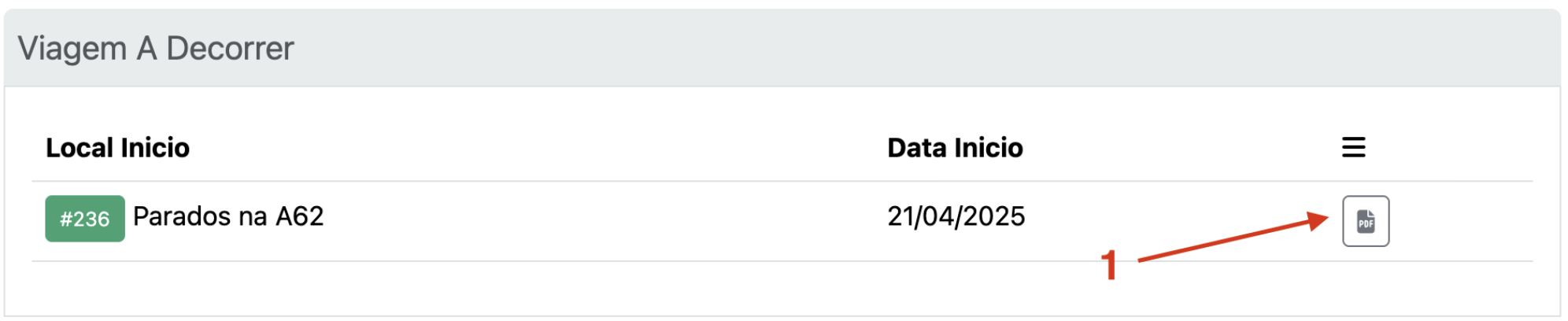
- Quick file upload.
If you click on the Start Location, a window will open with the full details of the ongoing trip.
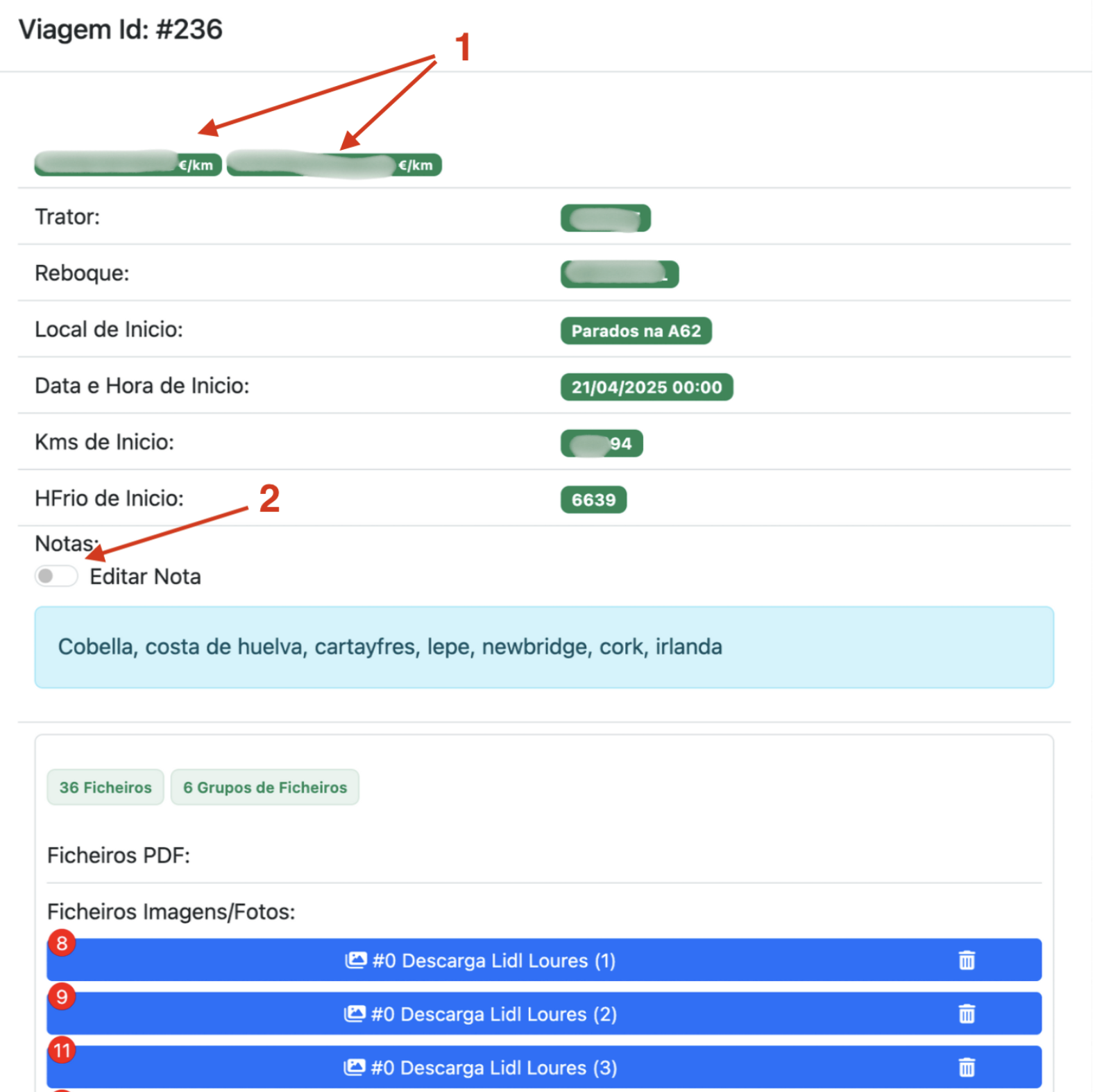
-
Indicates the names of the active drivers at the moment the trip is started.
-
Enables the option to edit trip notes. You can keep adding notes throughout the trip, and even after the trip is closed.
The remaining data is self-explanatory. At the top, you’ll see the trip start information, and below, the files uploaded for that trip.

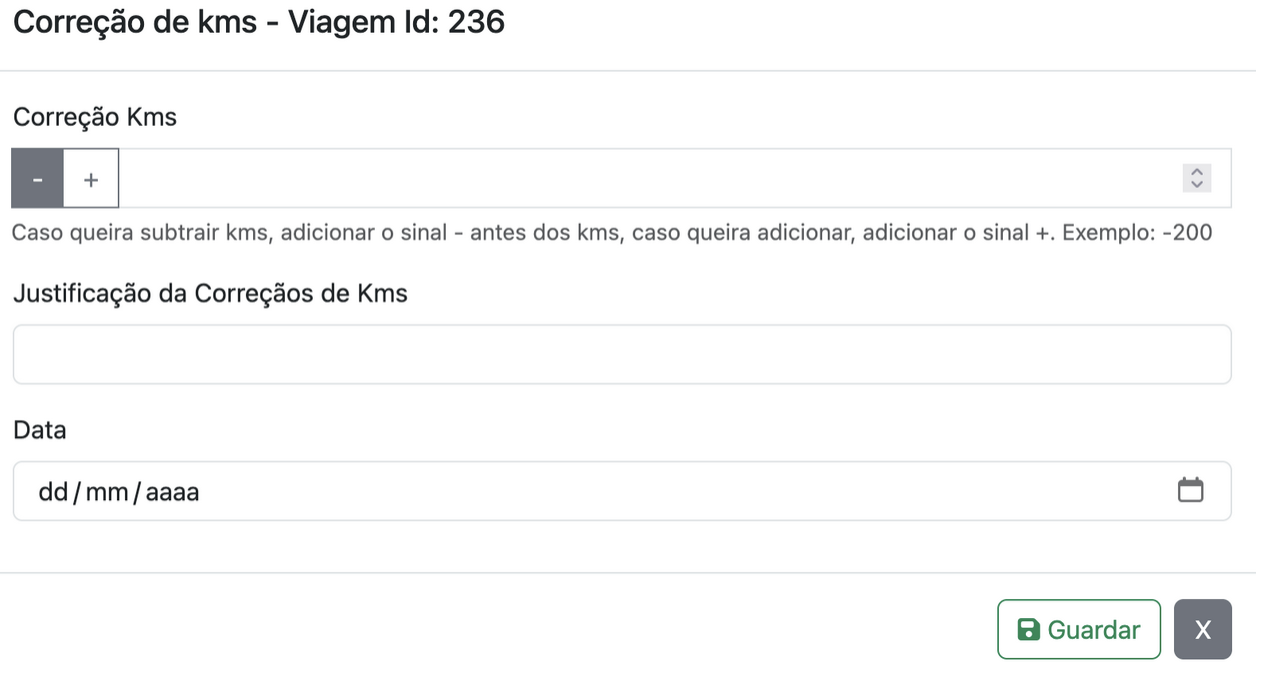
- The icon to add a kilometer adjustment to the trip.
When you click it, a window will open where you can add correction kilometers: addition or subtraction.
For example, subtract kilometers made by a loader using your truck, or add kilometers made with another vehicle that you want to count for payment.
- Move the trip to the recycle bin. This trip will not be deleted, but it will be treated as if it doesn’t exist.
- Edit the trip data.
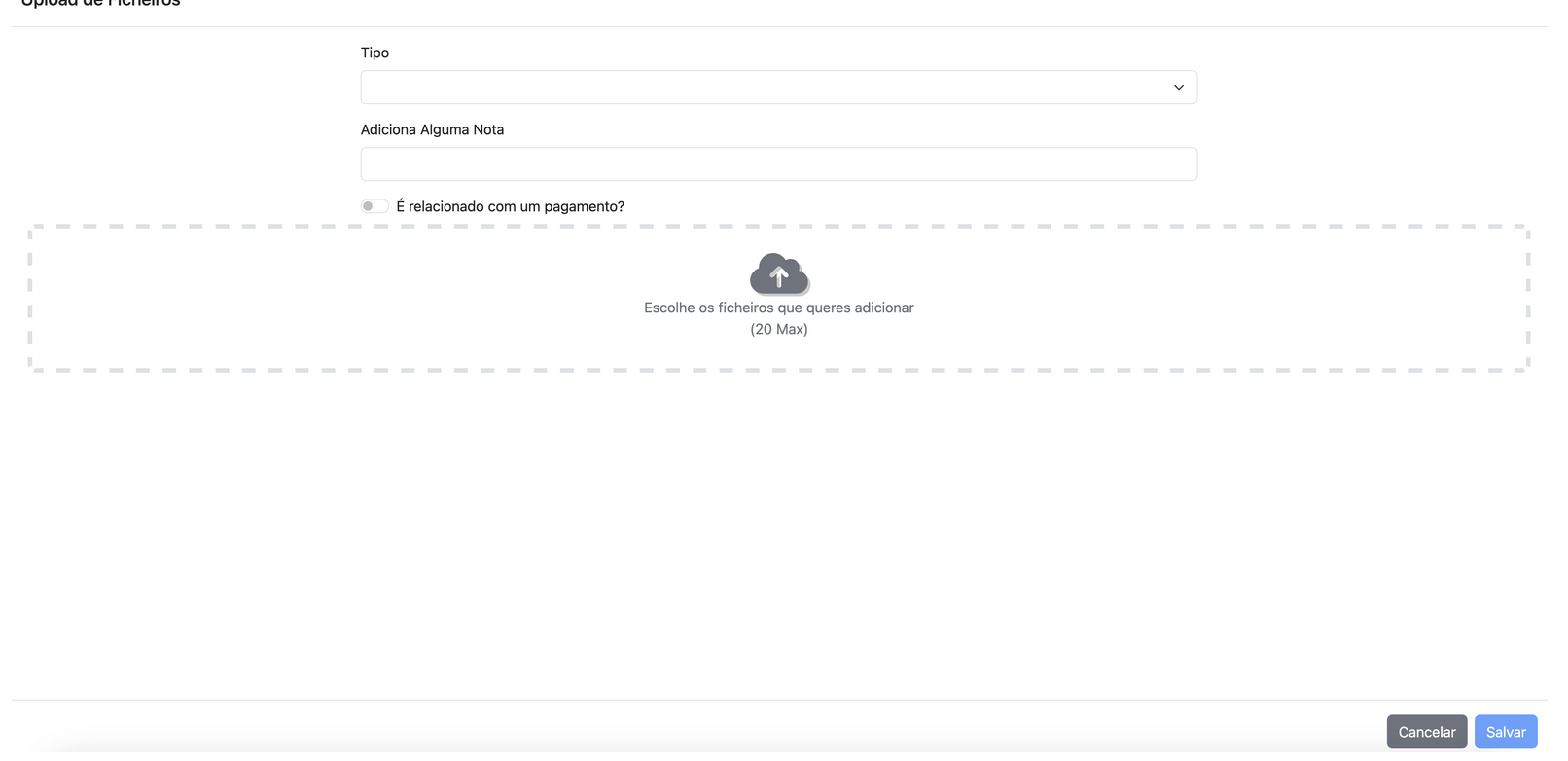
- Upload files: CMRs, reports, payment proofs, fines, etc.
- Register payments made during the trip, using the cards you’ve added in the Cards Module. You can record payments related to the company or personal expenses. It’s up to you.
- Close the Window!
Avalia este artigo para sabermos se te ajudámos. Obrigado!
Add Payments
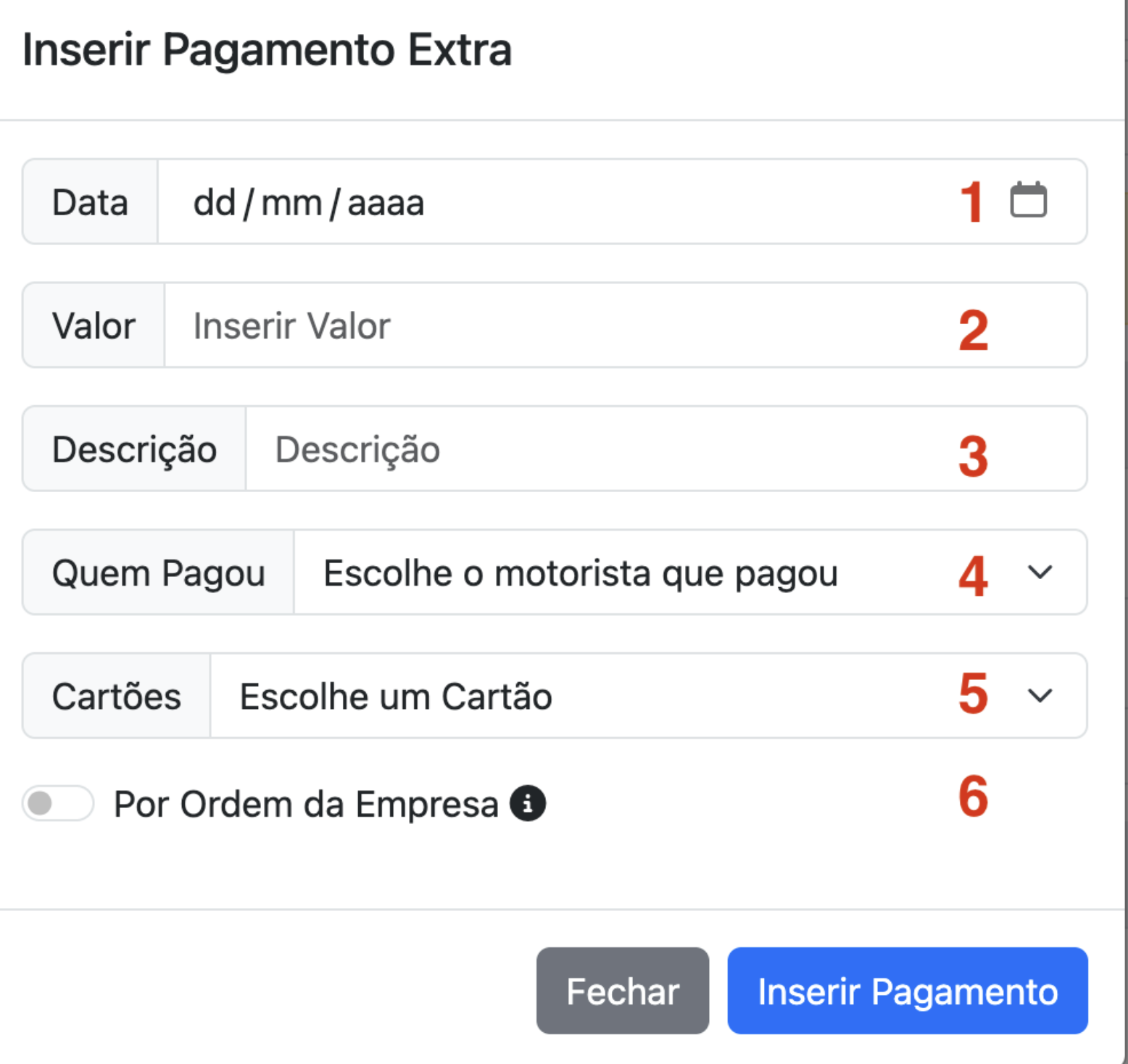
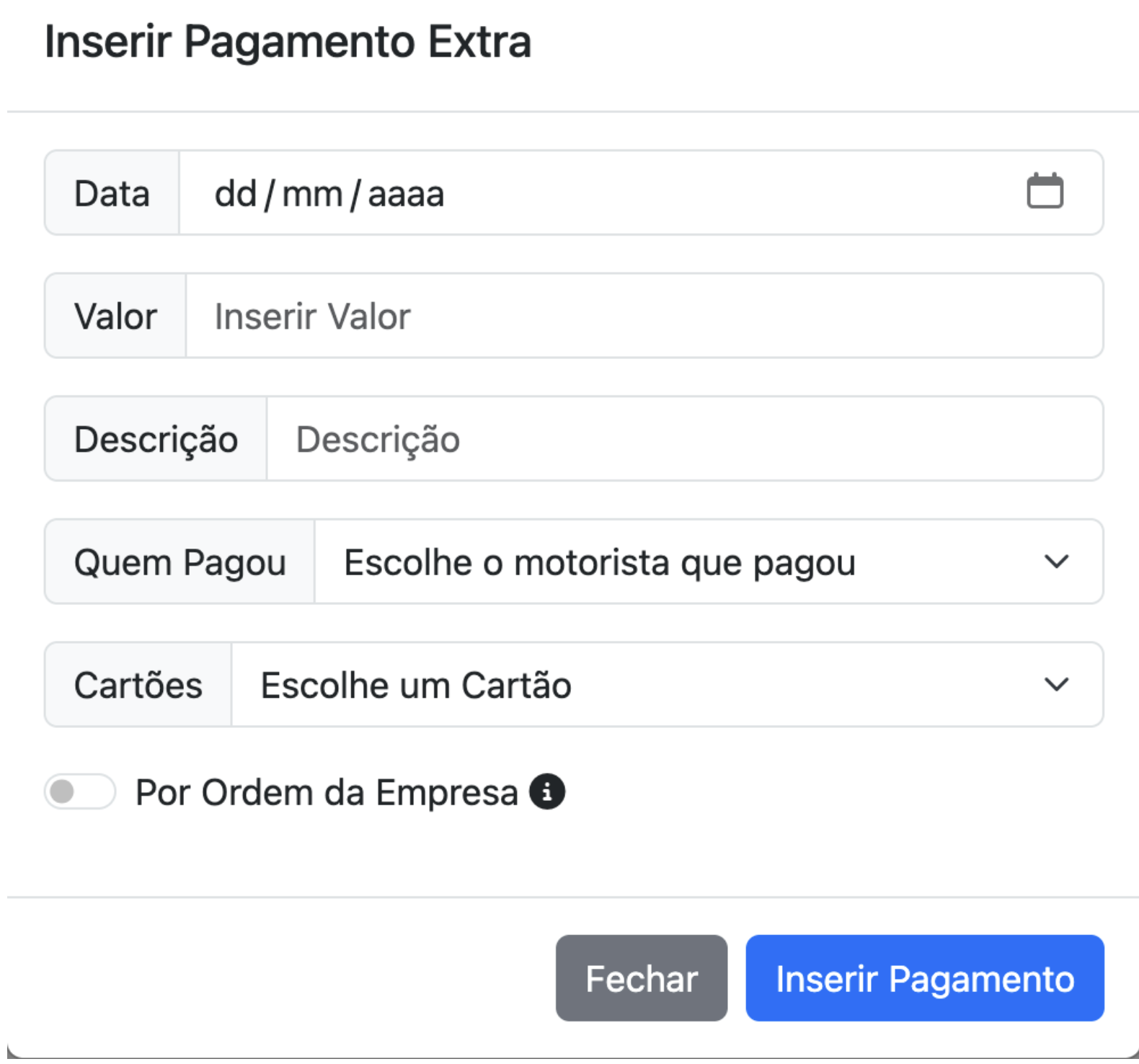
- Payment date.
- Payment amount.
- A description of what it was for, so you can review it later and remember.
- If it was paid by a driver, meaning with a driver's personal card.
- Which card was used. (How to add Cards)
- Whether or not someone from the company authorized it. If you selected a driver and activated the "Company Ordered" option, the amount will be included in the remuneration for the next month.
Avalia este artigo para sabermos se te ajudámos. Obrigado!
Diary
Introduction to the Diary
The Diary is like your paper agenda, where you will record all the information you find necessary — except now you can keep years of history in your pocket. The most powerful notepad for drivers you will ever see.
You can record:
- Activity logs, start and end of shift with location and kilometres
- Driving hours
- Load data such as weight, cubic meters, litres, temperature...
- Empty pallet movements, useful for those who exchange pallets during loading/unloading
- Instructions received from your superiors
- When you are checked by the police
- When you know you have an infraction
- Any other information you want
- And of course, everything is easily searchable. You can quickly find anything related to a specific day or event, even if it happened 5 years ago!
- Attach documents to your entries.
Literally, the most powerful notepad for drivers you will ever see.
Avalia este artigo para sabermos se te ajudámos. Obrigado!
Diary Settings
Settings to take into account for the proper functioning of the Diary:
Where to find the settings? Here > General Settings
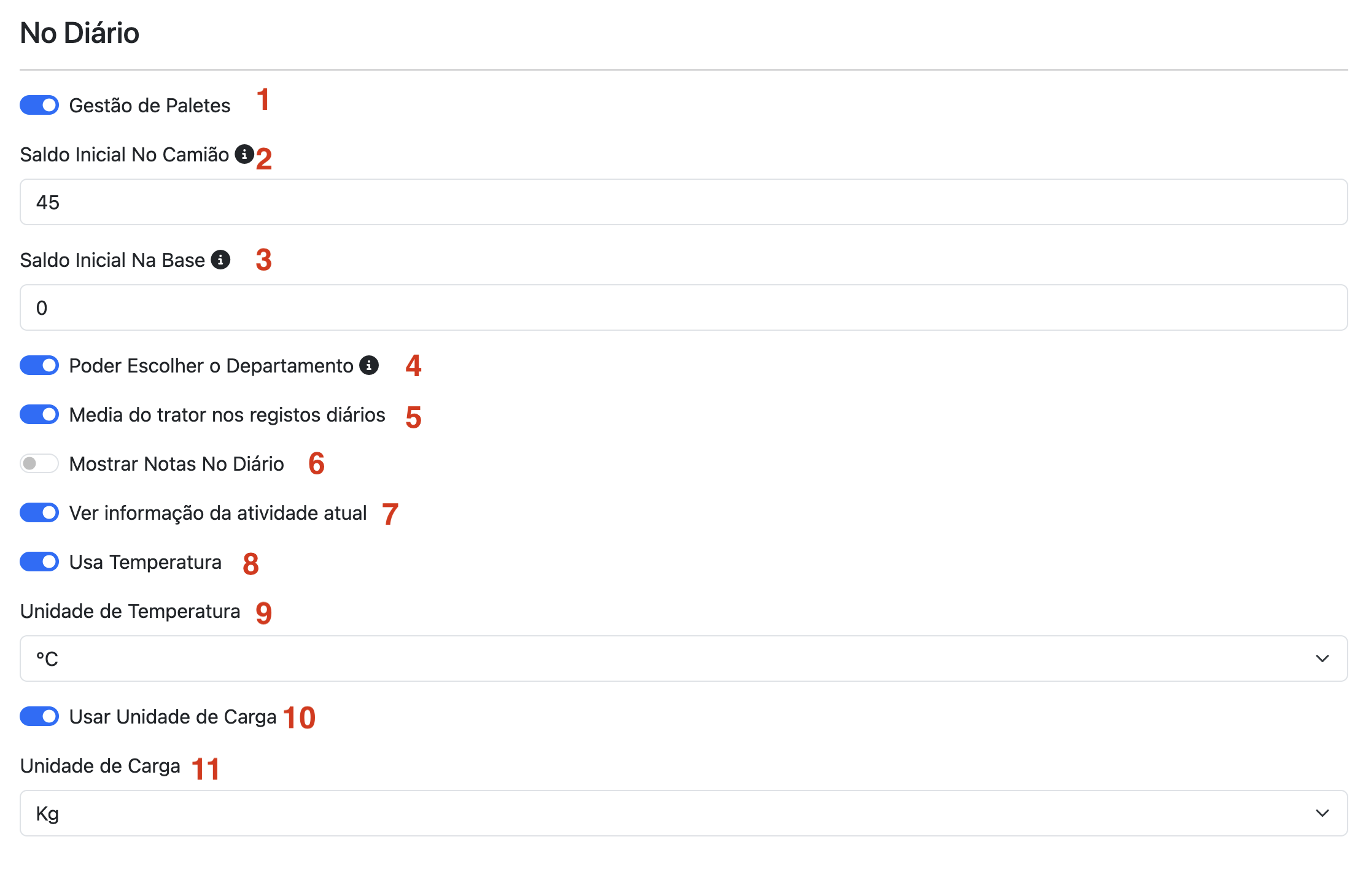
- Enable/Disable the pallet management mode. If you do not use pallet exchanges during loading/unloading, this module may not be relevant to you.
- If you use the pallet management module, indicate how many empty pallets you have in the truck when you start using TruckersBook.
- If you use the pallet management module, indicate your balance of empty pallets at your company’s base.
- Enable/Disable the option to select the department.
- Enable/Disable the option to record the tractor’s average consumption at the end of the shift.
- Enable/Disable the option to display Notes below the Diary.
- Enable/Disable the option to show the status of your current activity at the top of the Diary.
- Enable/Disable the use of load temperature registration in Diary entries.
- Choose the temperature unit.
- Enable/Disable the option to use a load unit in Diary entries.
- Choose the load unit.
You must also have the driver added, or drivers if you are in a multi-crew setup. Here.
Avalia este artigo para sabermos se te ajudámos. Obrigado!
Página Inicial do Diário
Página Inicial do Diário para ecrãs grandes:

Página Inicial do Diário para ecrãs pequenos:
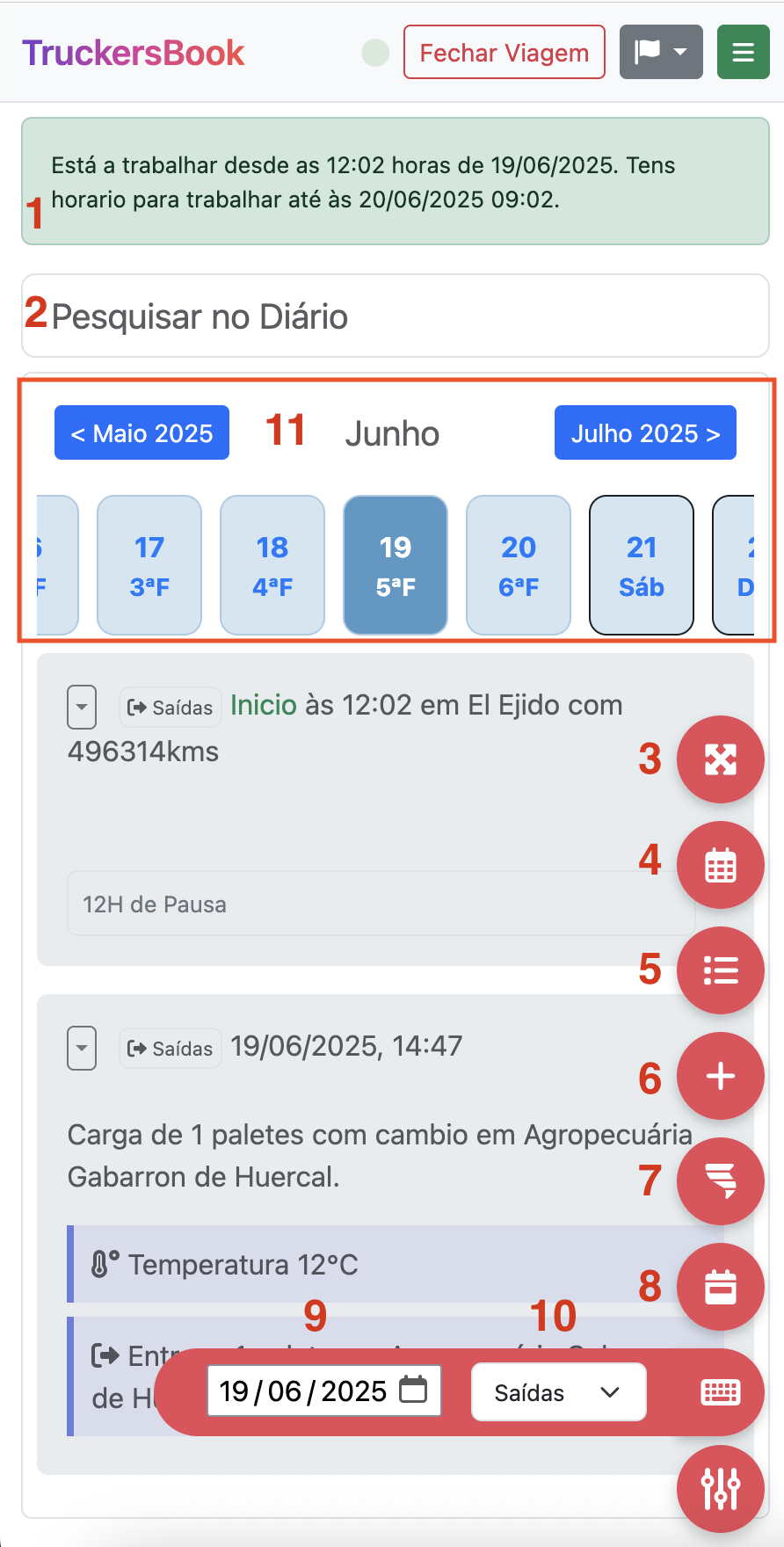
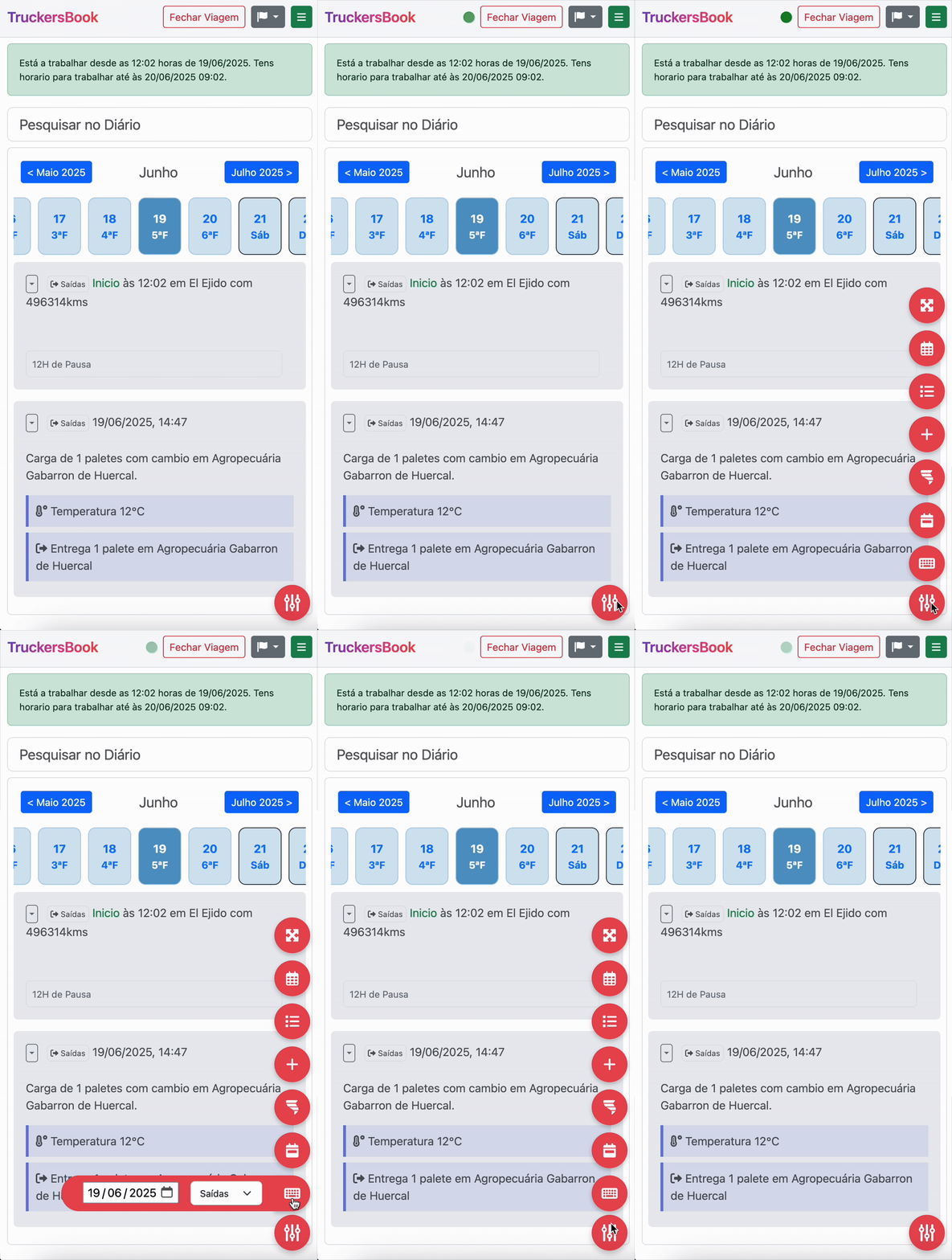
- Indica o estado da atividade no momento.
- Campo de pesquisa no Diário
- Botão que insere um registo para dias que estás fora mas não estiveste atividade. Ou seja, um dia que estás sem carga ou a fazer uma pausa maior mas não na tua casa, então inseres um registo para mais tarde saberes que nesse dia estavas fora mas não houve mais nenhuma atividade.
- Abre o calendário.
- Abre o Diário em forma de lista com todos os teus registos.
- Abre o formulário de registo no Diário.
- Inicia o registo rápido de atividade com base nos dados do fim de atividade anterior, local e kms.
- Vai para o dia de Hoje
- Escolhe um dia para veres os dados.
- Altera o departamento para o qual estas a trabalhar no momento.
- Navega entre dias e meses.
Avalia este artigo para sabermos se te ajudámos. Obrigado!
Inserir Registos
Formulário de Registo - Inicio de Atividade
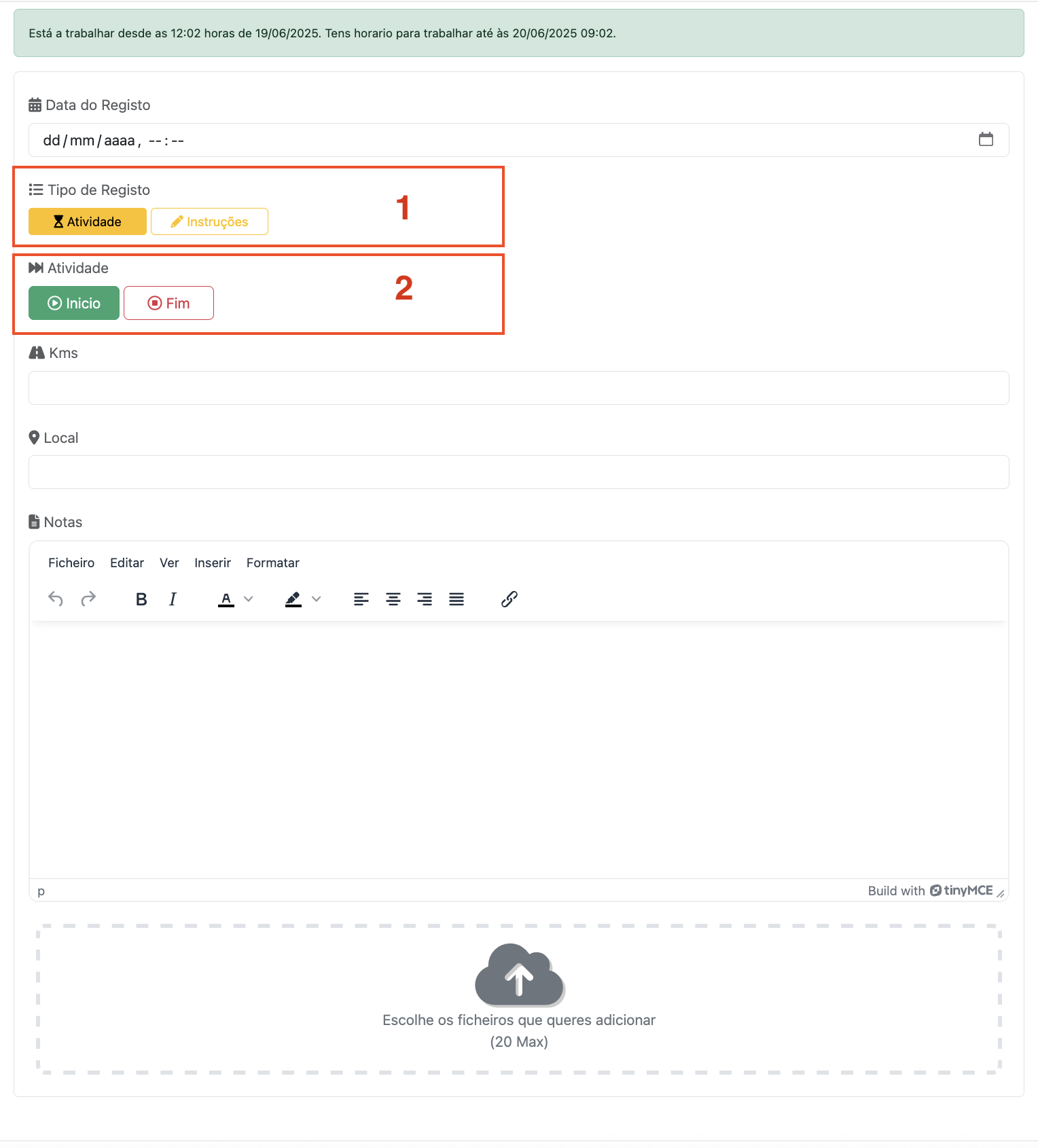
- Tipo de Registo: Se é um registo de atividade ou se é um registo de instruções/notas.
- Se for registo de Atividade, se é Inicio ou Fim de atividade.
Caso seja Inicio de Atividade, o formulário é igual ao apresentado anteriormente. Inserir data e hora, definir que é Atividade e Inicio, inserir os kms da viatura e o local onde inicias a atividade. Podes também inserir algum texto como nota.
Formulario de Registo - Fim de Atividade
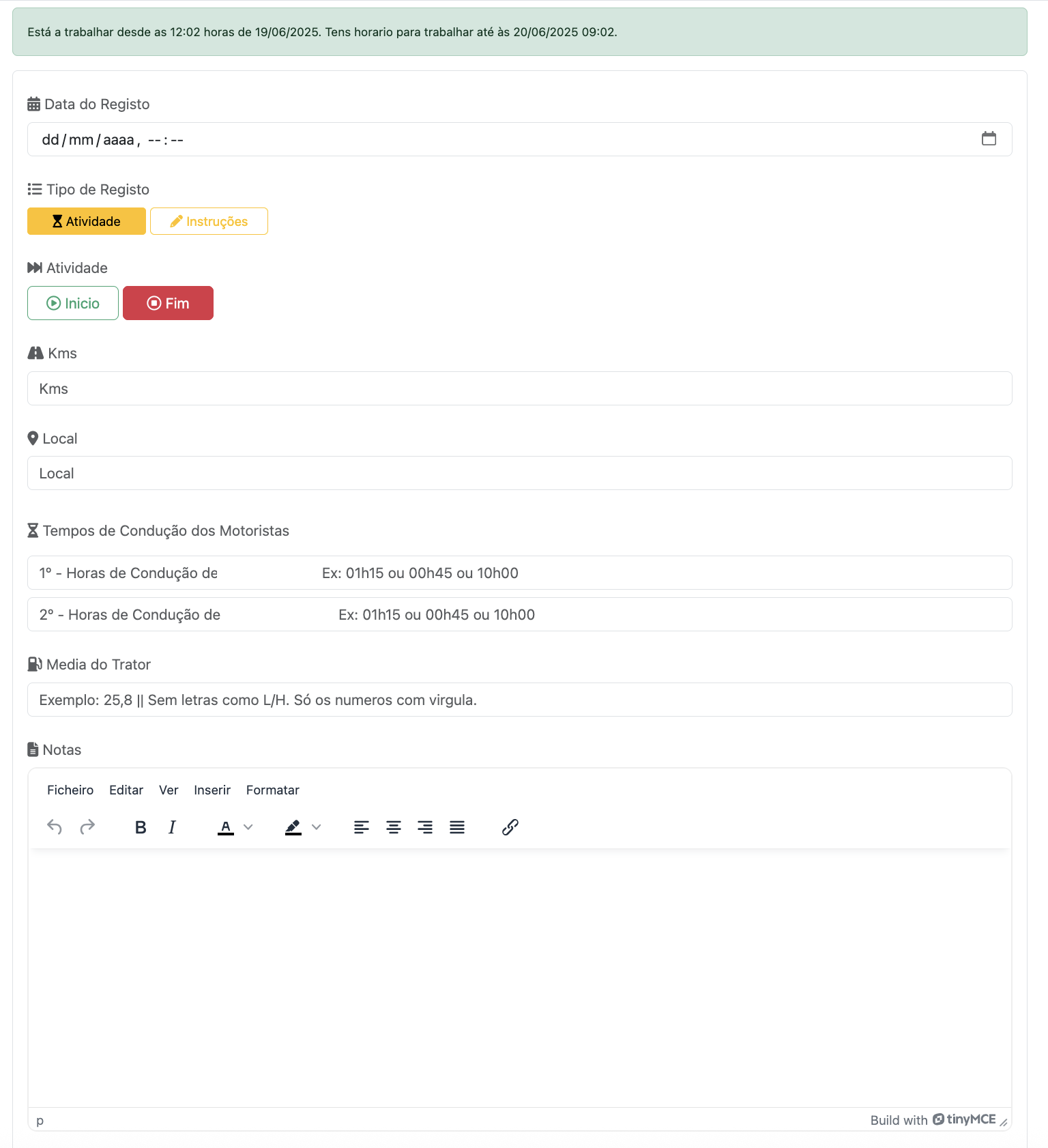
Aqui no registo de Fim de Atividade, deve ser inserida a data e hora, os kms, o local, os tempos de condução de cada motorista*, a média de consumo do trator no momento em que finaliza o turno** e uma nota escrita caso pretenda.
Formulario de Registo - Instruções
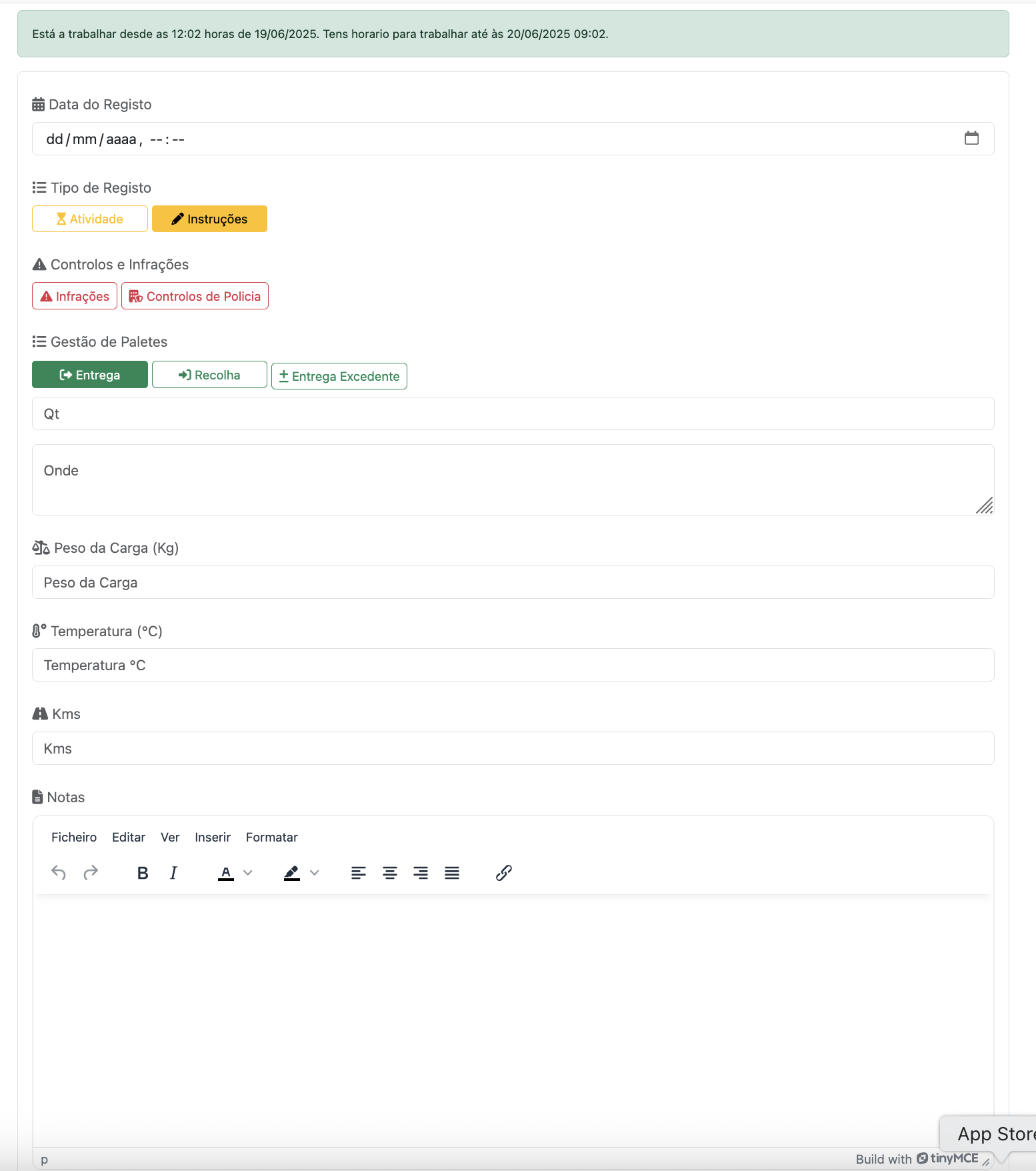
No formulário de inserção de Instruções, podes registar para além do que entenderes, Registos de Infrações e deta forma facilita quando és controlado pela policia. Registos de Controlos Policiais.
Podes também registar cargas e descargas, e nas cargas e descargas registar se houve troca de paletes, quantas paletes trocaste e onde efetuaste a troca.
Podes registar a temperatura da carga**.
Podes registar a unidade da carga***.
Podes registar uma simples nota de texto, como por exemplo instruções recebidas por parte dos teus superiores, ou registar que te rebentou um pneu ou apenas uma nota que queiras ver adicionada naquele dia aquela hora.
Este módulo do TruckersBook, ajuda-te a manter registos durante o tempo que tu entenderes, e sempre no teu bolso acessivel em qualquer lugar!!
Avalia este artigo para sabermos se te ajudámos. Obrigado!
Motoristas
Introdução aos Motoristas
No módulo Motoristas, podes registar os motoristas, incluindo tu, deverás registar-te também como motoristas. E todos os outros motoristas que contigo trabalharam no caso de trabalhares ou teres trablhado em modo tripulação multipla.
Nesta pá deverás também definir quem é o motorista principal, e para o caso de quereres usar o modulo Pagamentos, para o sistema fazer as contas certas, deverás registar o salario base e preço que cobras ao km (se for o caso, ou deixa a zero).
Avalia este artigo para sabermos se te ajudámos. Obrigado!
Gerir Motoristas
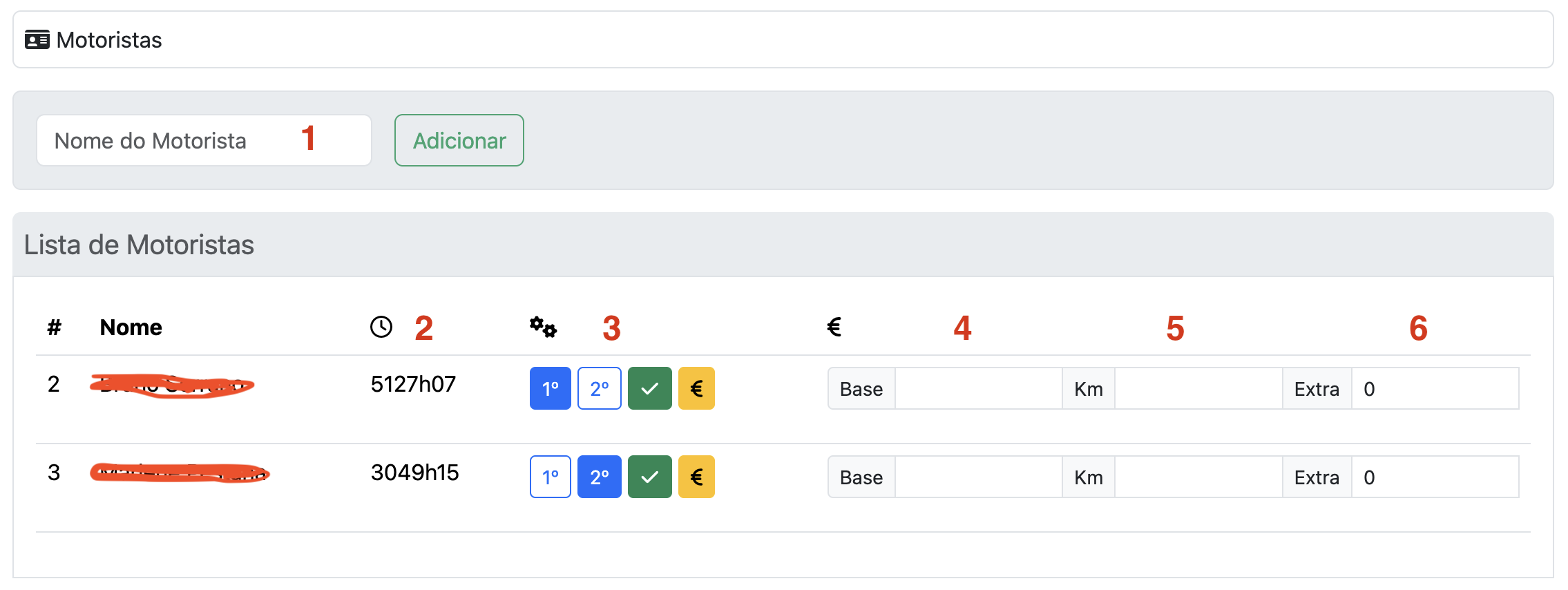
- Nome do motorista a adicionar.
- Apresenta o tempo total de condução de cada motorista com base nos registos do Diário.
- Definir o estado do motorista e se queres que o motorista apareça também na lista de pagamentos.
- Valor do salario base.
- Valor do salario por km (caso não se aplique, deixar a zero).
- Valores extra, como diuturnidades caso aplicavel (caso não se aplique, deixar a zero).
Avalia este artigo para sabermos se te ajudámos. Obrigado!
Cards
Manage Cards
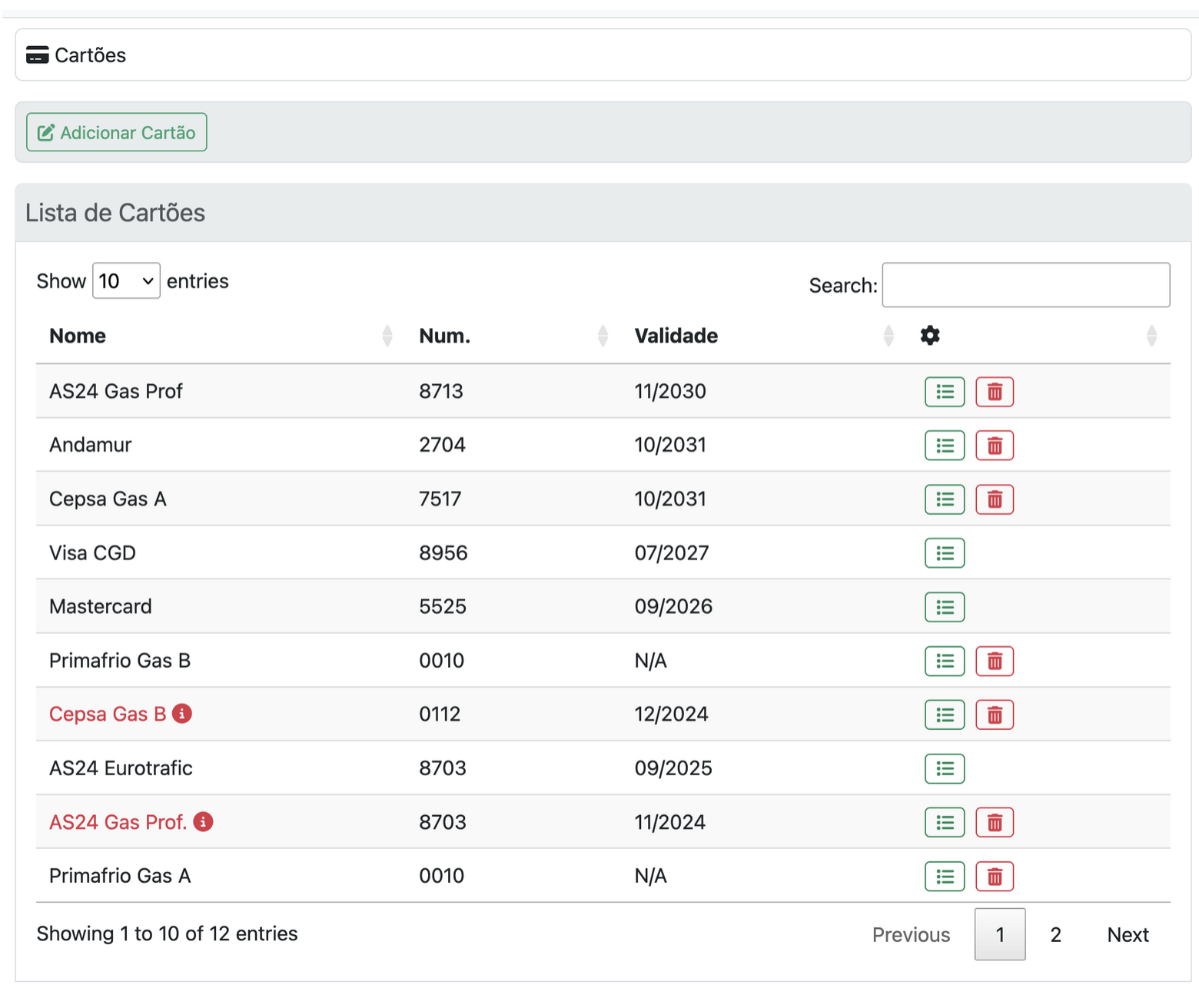
Card List
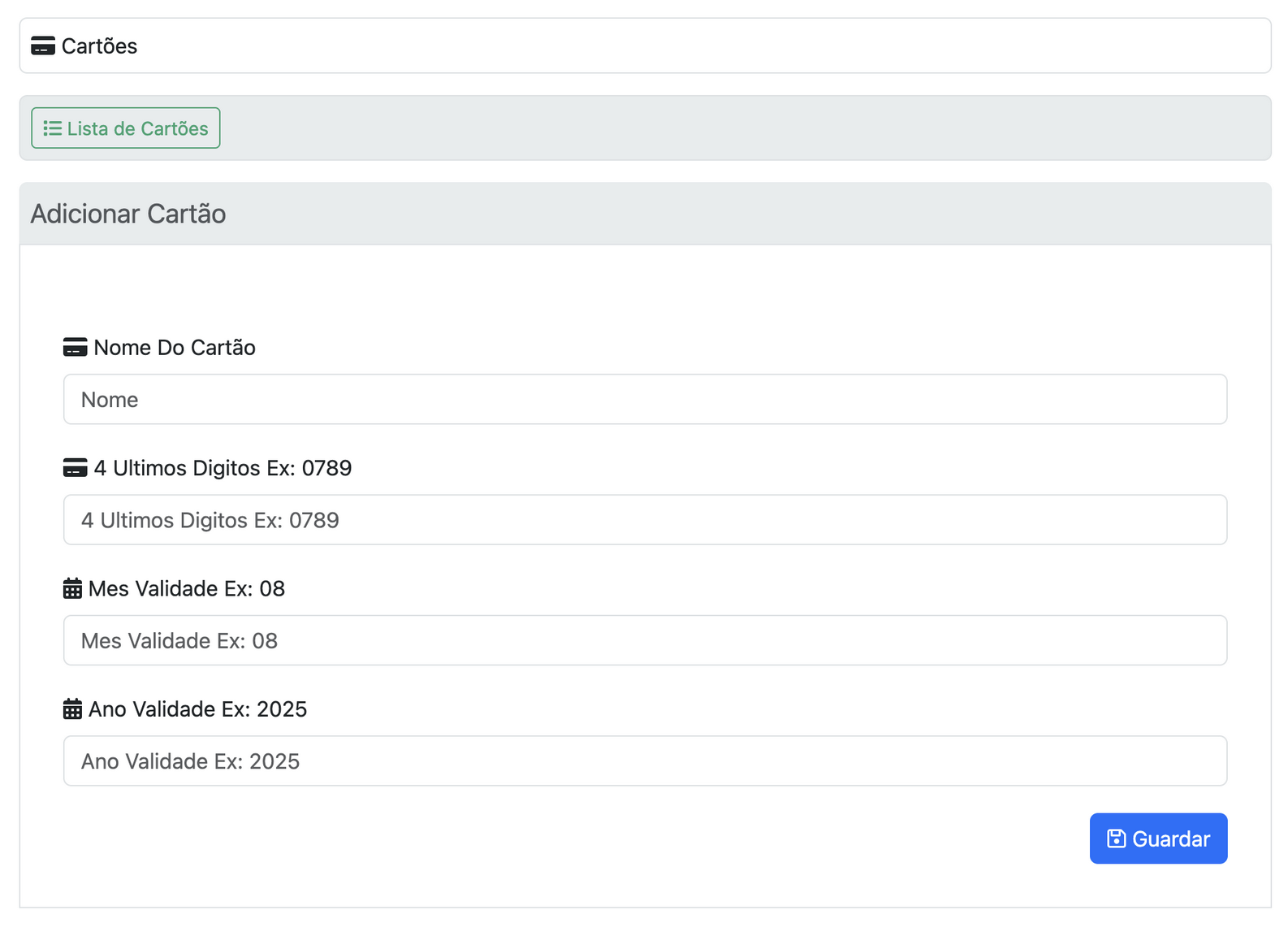
Add Card
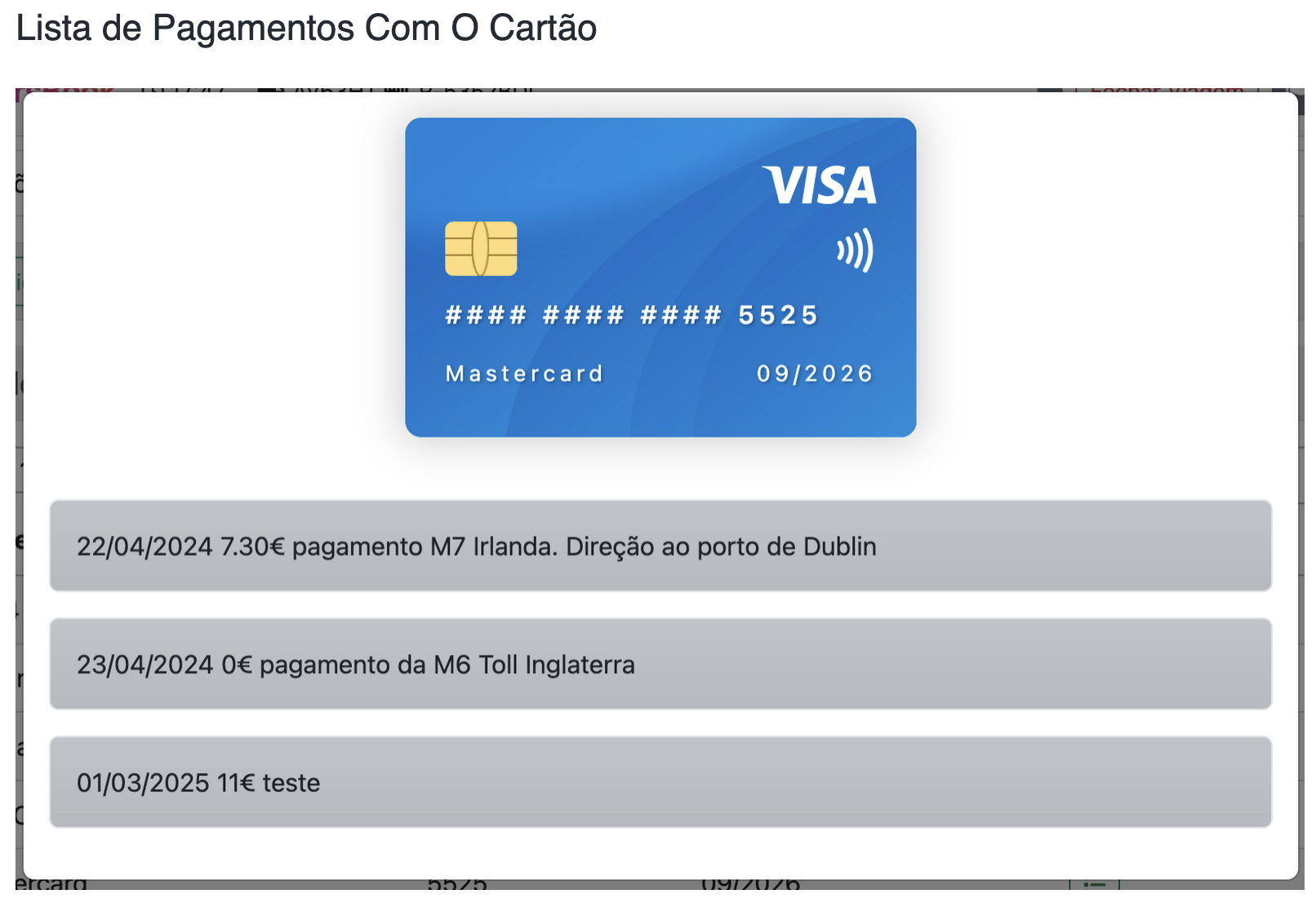
List of Payments with the Card
Avalia este artigo para sabermos se te ajudámos. Obrigado!
App Iphone
Introduction

TruckersBook is a digital application designed to simplify and automate the daily work of drivers. Created with a focus on efficiency, organization, and ease of use, the app replaces traditional paper records with a modern, fast, and secure system that can be accessed from anywhere with an internet connection.
This system was created to assist drivers in the context of their daily activity.
It is extremely important for drivers to keep records of their work, whether for simple reference or for more serious situations, such as an accident.
It is common for police checks to require certain activity-related data or specific documents. This is the right place to manage all of that.
Designed for drivers all around the world, TruckersBook brings together in one place all the essential tools for their professional day-to-day activities:
- Trip management
- Daily activity management
- Driving times
- Statistics
- Payment management
- Driver management
- Notes
- Automatic list of worked days
- Export data for paper storage
- CMR generator
- Among others…
The main goal of the application is to enable drivers to work in a more organized way, with fewer mistakes, less paperwork, and faster data entry and consultation. All information is securely stored on the server, ensuring permanent access and synchronization across devices.
TruckersBook was developed with individual drivers in mind, but also small and large transport companies, offering a flexible, intuitive system that adapts to the needs of each user.
This manual clearly explains all the features of the application: how to navigate through the menus, how to create records, how to consult information, and how to make the most of the available tools.
It is important to note that this system is constantly evolving and is developed by drivers. We kindly ask for your understanding in the event of any errors, which can be reported directly here through this platform.
And if you have any suggestions, we would be grateful if you let us know.
Safe miles!
Avalia este artigo para sabermos se te ajudámos. Obrigado!
Settings
To access the settings, follow the screenshots.
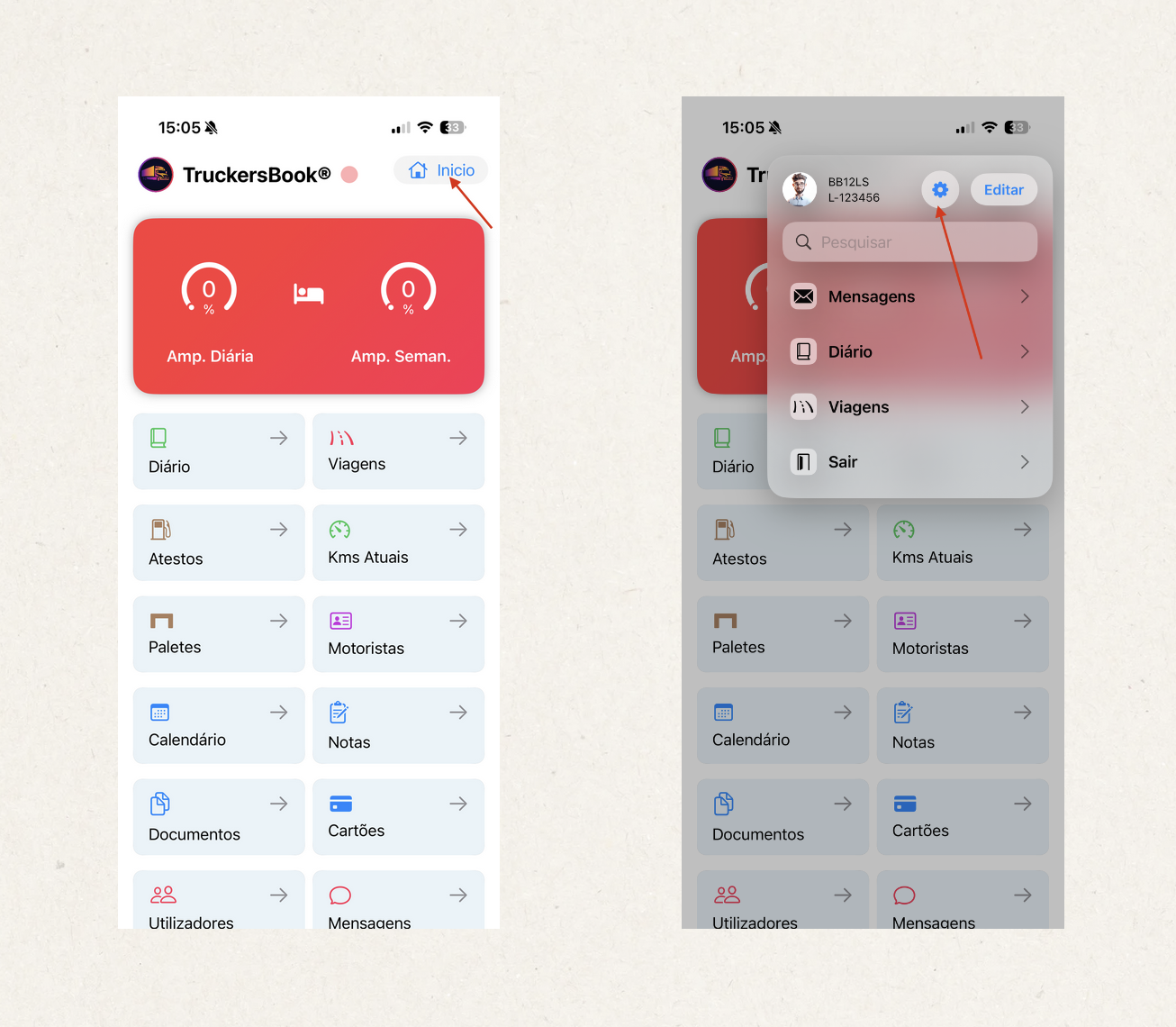
In the app settings, you can manage all the information associated with your account, as well as the configurations required for the proper functioning of the app.
Basic information included in your account:
[Name, Email, Gender, Date of Birth, Country calling code, Phone number, Address, Postal code, City, Country, Language, Time zone, Currency, Tax ID]**
* These fields are not mandatory, but they help ensure the proper functioning of the application and the personalization of your experience.
Privacy:
- In the user list → Choose whether you want to appear in the user list.
- Accept friend requests → Choose whether you allow others to send you friend requests.
- Accept receiving messages → Choose whether you allow others to send you messages.
- Receive emails about expiring documents → Choose whether you allow the system to send you emails when you have documents nearing expiration.
- Change password.
Professional Data
These settings are important for internal calculations, statistics, and the organization of your activities.
Tractor License Plate (Required)
The tractor license plate is essential for associating all your records within the application.
Without this information, it is not possible to correctly link trips, refuels, duty periods, or statistics.
Multiple Crew
Allows you to indicate whether the vehicle operates with one or two drivers.
Although it is not mandatory, it is recommended to ensure that:
-
The duty period calculations are accurate;
-
The statistics accurately reflect your working reality;
Choose the option that applies to your case to obtain accurate results.
Other Settings
Although not mandatory, all remaining options help improve your experience in the app.
Avalia este artigo para sabermos se te ajudámos. Obrigado!
Home Screen
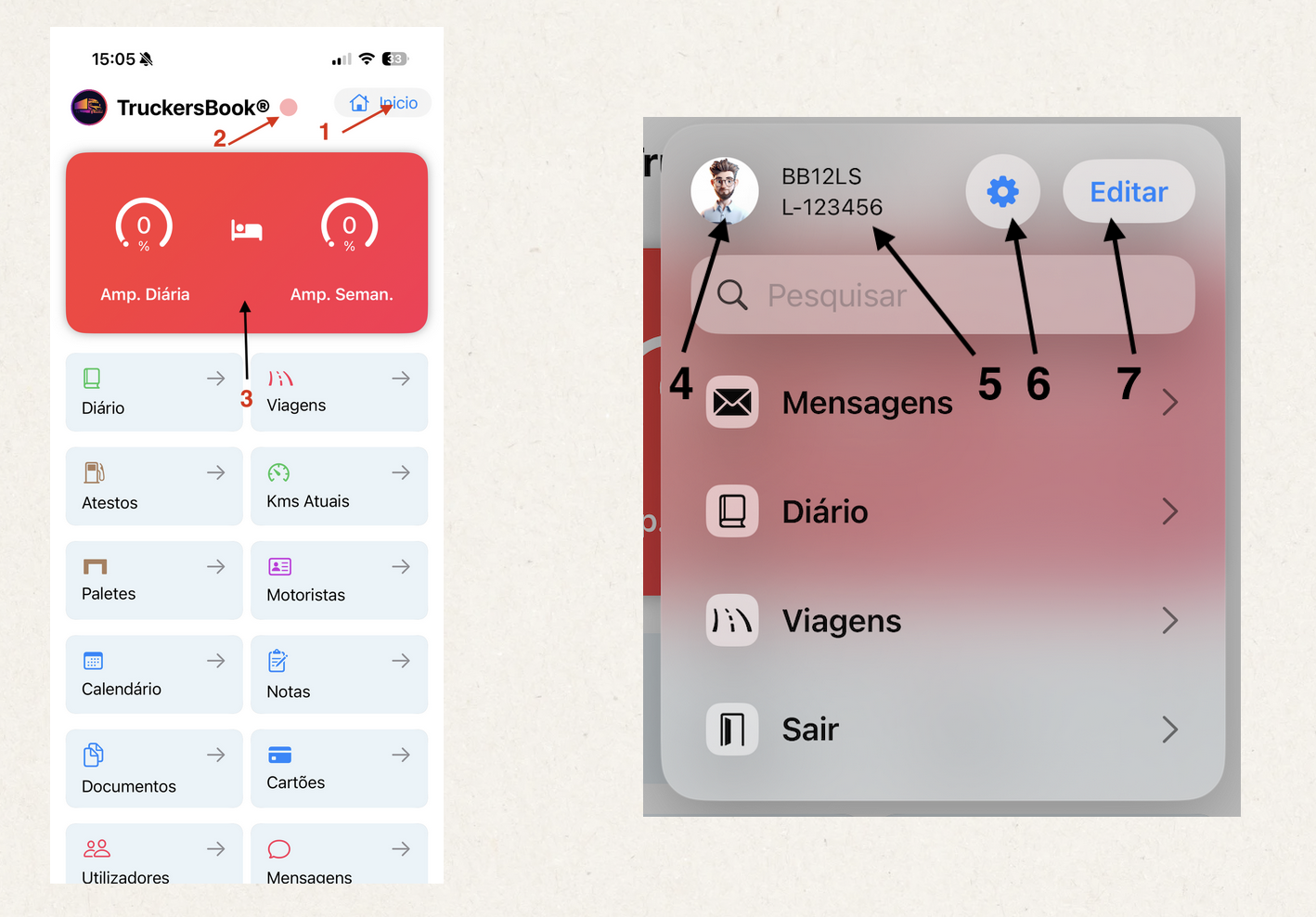
-
Quick menu access.
-
Your activity status (driving, rest, waiting, etc.).
-
Duty period status (only appears when you are in activity).
-
Your avatar.
-
Your license plates.
-
Access to settings.
-
Edit the order of the Home icons.
The search field allows you to search throughout the entire app.
The remaining menu items provide quick access to the modules.
At the bottom of the quick menu, you will find the Logout option, used to end the session safely.
Avalia este artigo para sabermos se te ajudámos. Obrigado!
Drivers
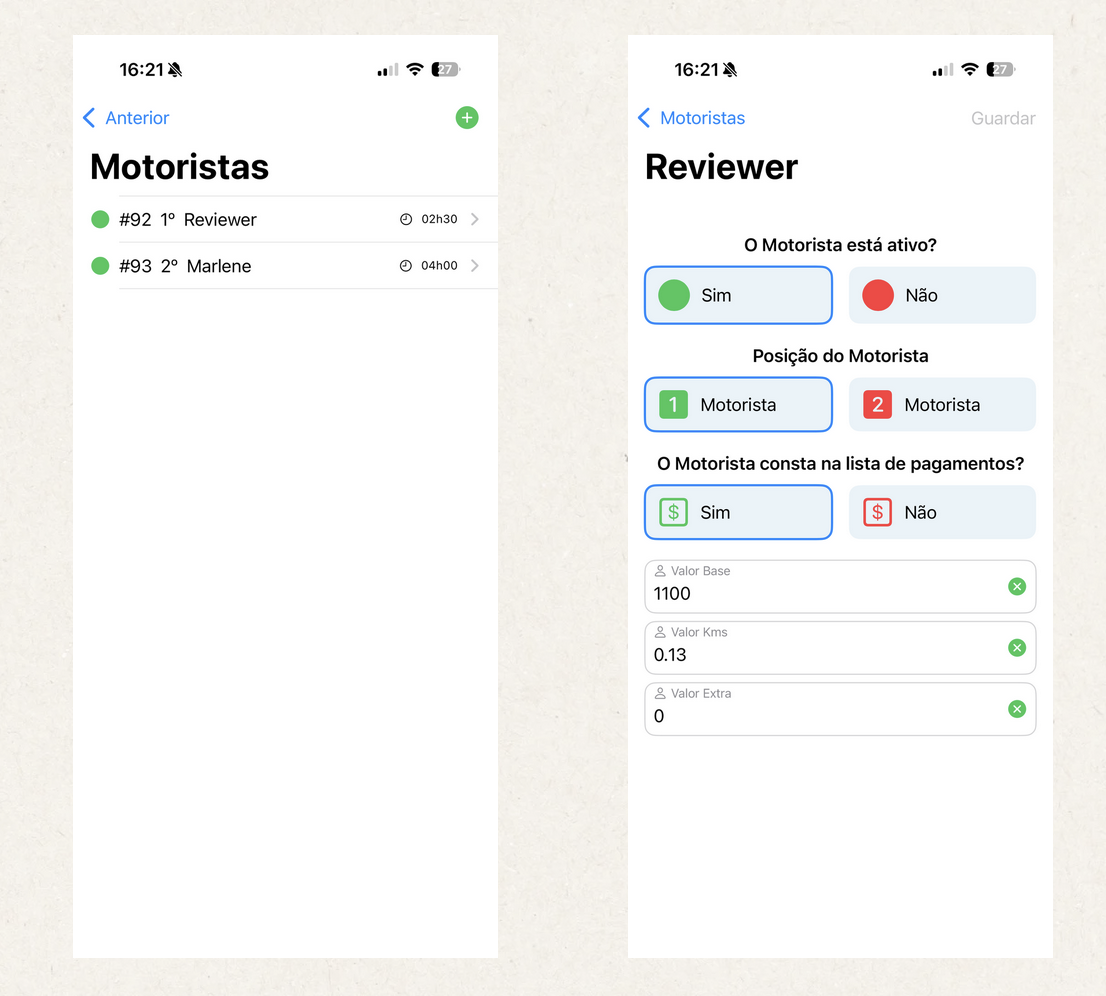
In the Drivers module you will find your own profile, created automatically when you open your account.
You can add more drivers and set individual configurations for each one.
Available settings for each driver:
-
Active / Inactive – Defines whether the driver is currently active.
-
Driver Position – Driver 1 or Driver 2.
-
Payment List – Choose whether this driver should appear in the payments module.
-
Remuneration Values – Base amount, amount per kilometre, and extra amount.
❗ Important information
It is essential that you correctly indicate whether you are in multiple crew or single crew, as this information affects internal calculations such as duty period and statistical results.
Avalia este artigo para sabermos se te ajudámos. Obrigado!
Trips
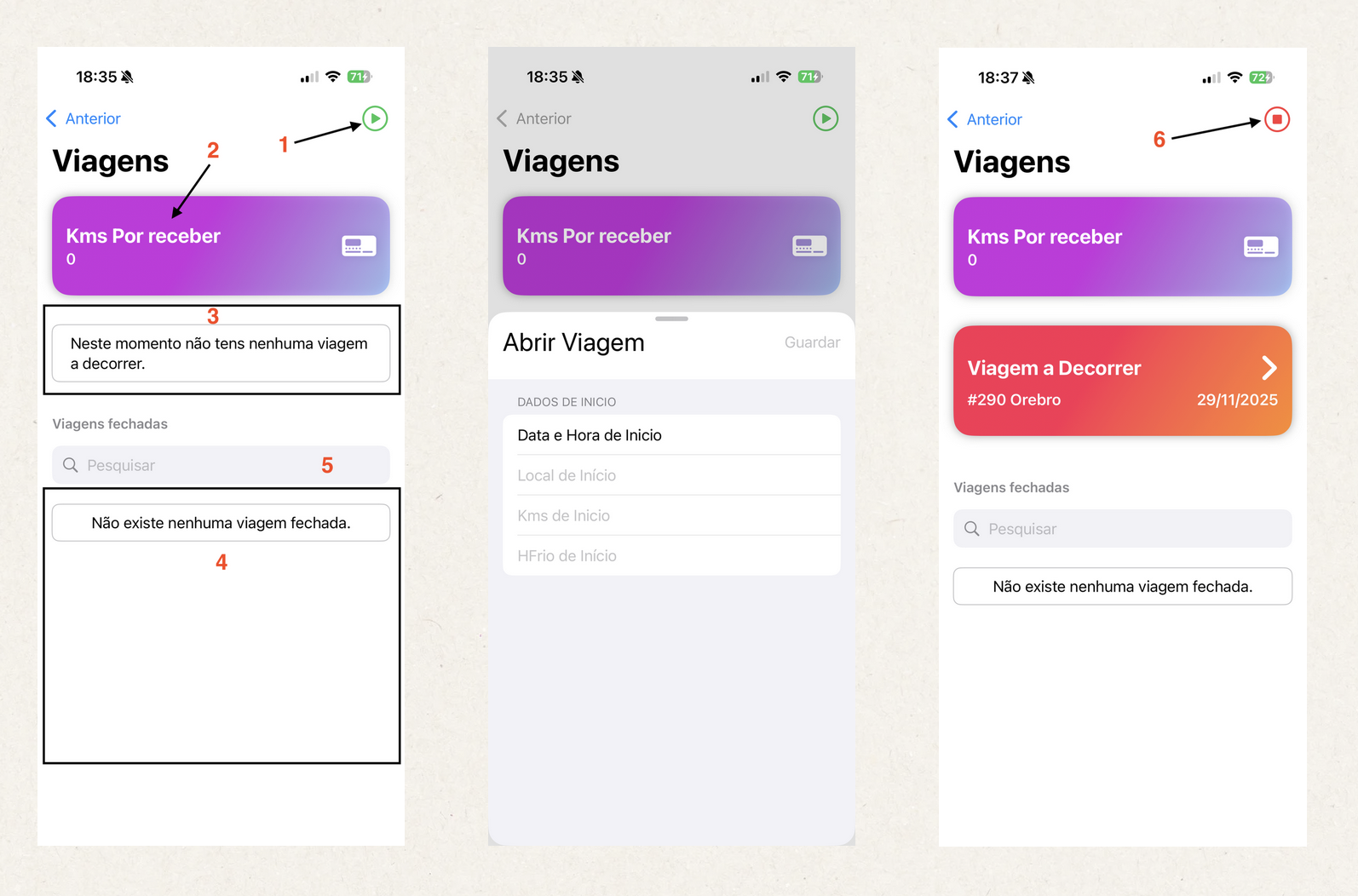
The Trips module is designed to work as 1 trip per month, or you can use 1 trip per report.
If, in the Monthly Payment Type, you have the option “Payment per Km”, the Payments module will map the trips marked as paid, add the kilometres, and perform the remaining calculations.
Example:
Suppose you have 3 trips that are Closed but Not Paid, and you indicate that they were paid on 06/08/2025. The payments module will map them and add the kilometres of those 3 trips.
Trip 1 closed on 03/07/2025. Paid on 06/08/2025. Start Km: 2000; End Km: 2500; 2500–2000 = 500
Trip 2 closed on 09/07/2025. Paid on 06/08/2025. Start Km: 2500; End Km: 3500; 3500–2500 = 1000
Trip 3 closed on 19/07/2025. Paid on 06/08/2025. Start Km: 3500; End Km: 5000; 5000–3500 = 1500
Total Trip Kilometres – 3000
If you define that the Driver receives a fixed salary of €1000 and €0.10 per kilometre travelled:
3000 * 0.10 + 1000 = 1300
This will be the amount you receive per month.
- Open Trip.
- Indicates the kilometres pending payment, meaning kms from trips that have not yet been paid.
- Area showing the currently open trip in progress.
- List of closed trips.
- Search field for trips.
- Close Trip.
In the trips you can attach files, such as photos of load documents.
You can also add payments, for example toll payments.
You can also record any notes you find necessary so you can easily find this trip later through a search.
The Payments module will calculate using the drivers’ remuneration values and the trip values, especially for drivers who are paid per kilometre travelled.
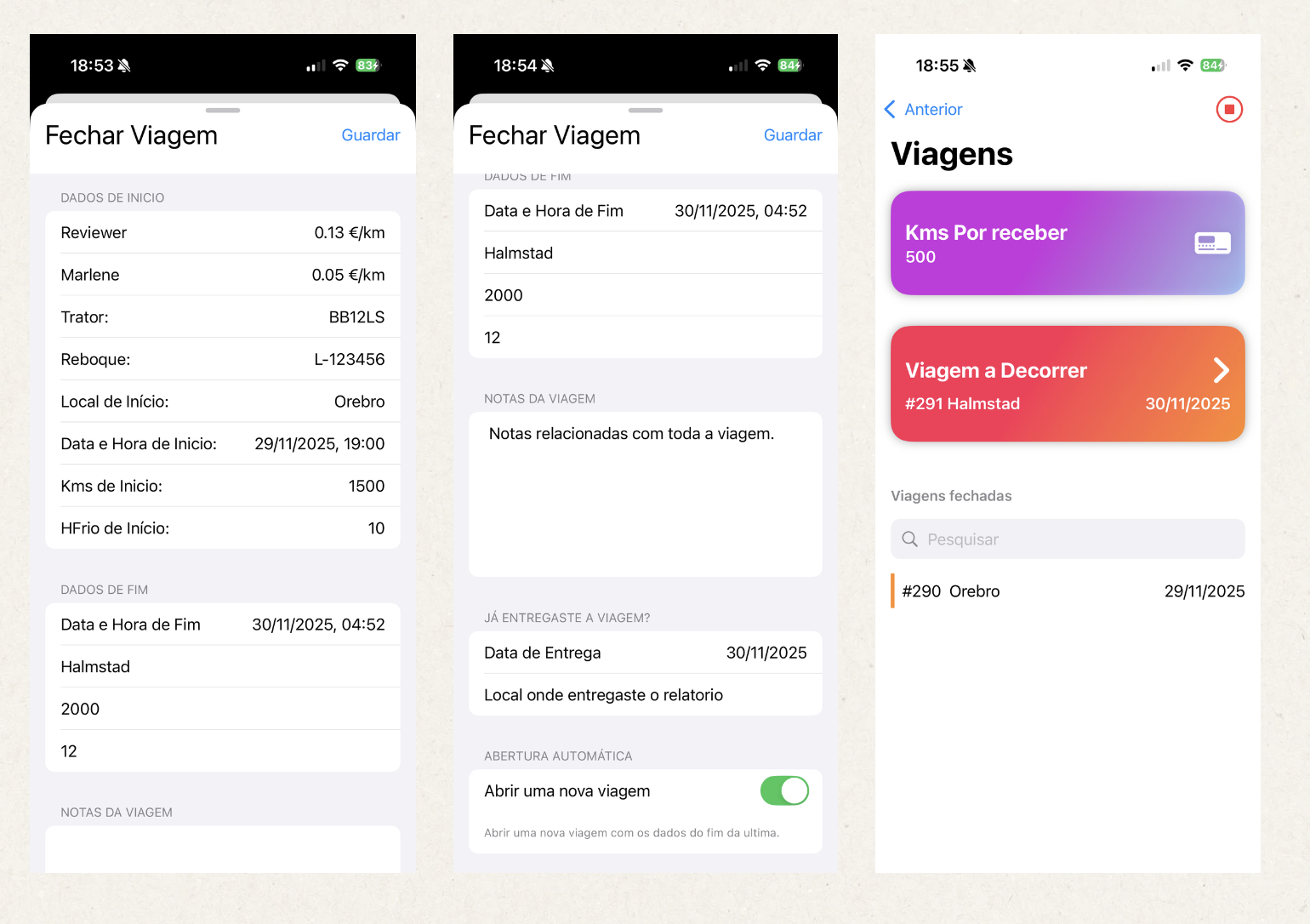
The image above shows the Close Trip form, the trip already closed, and a new one opened.
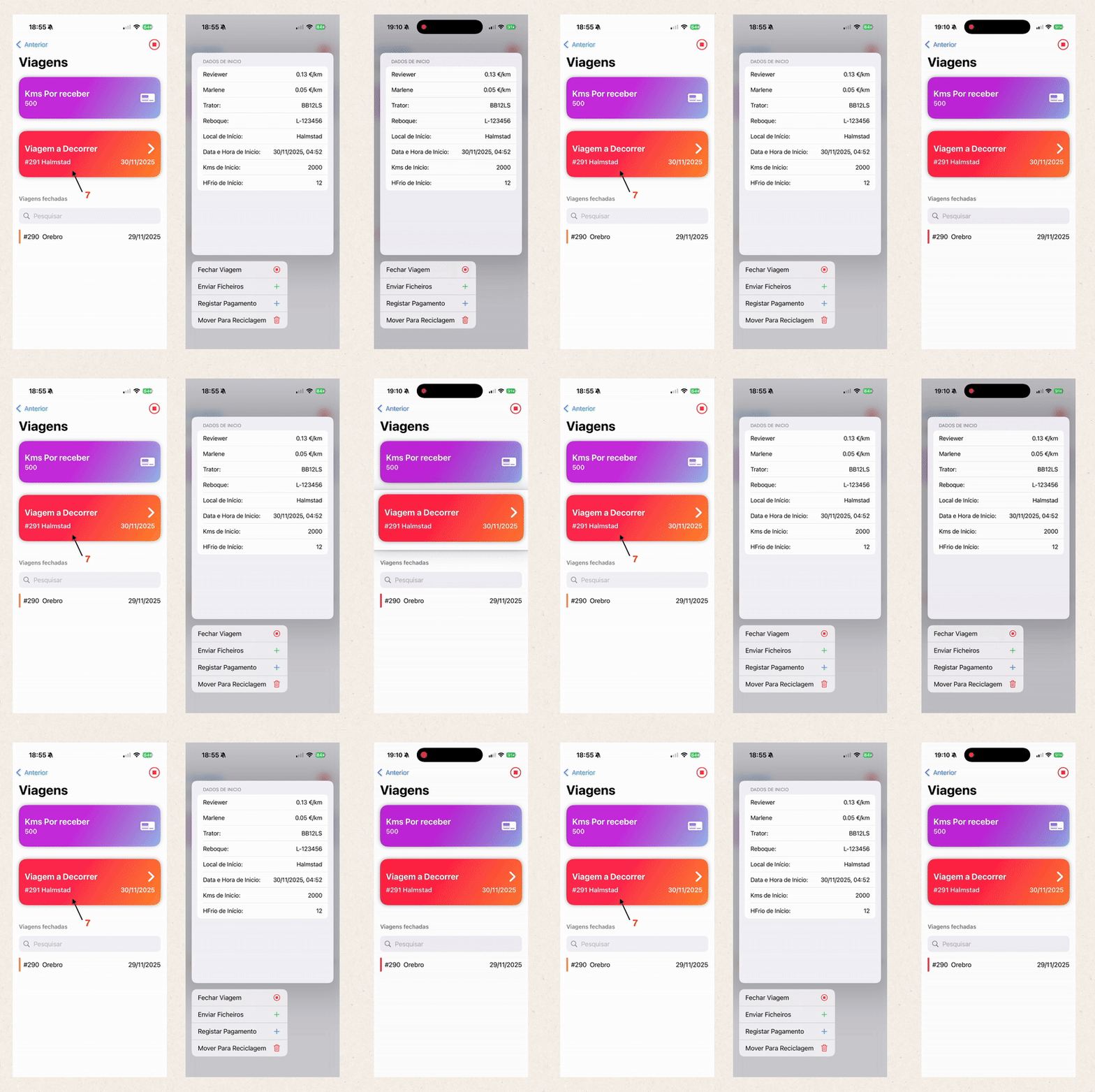
7. If the current trip is pressed, options for the trip will appear.
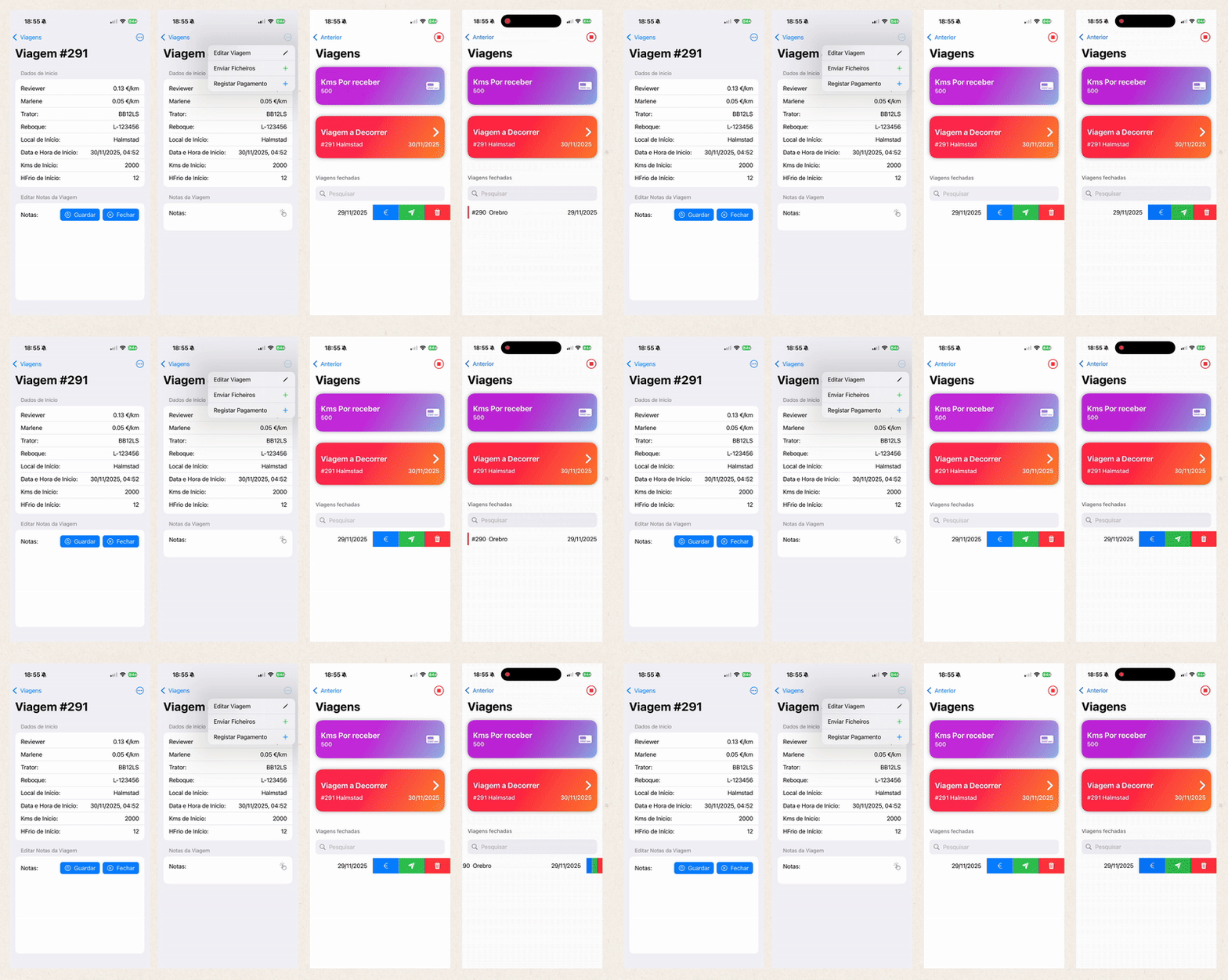
 Indicate to the system that the trip report has already been delivered.
 Indicate to the system that the trip has been paid.
 Move trip to the recycle bin.
Avalia este artigo para sabermos se te ajudámos. Obrigado!
Diary
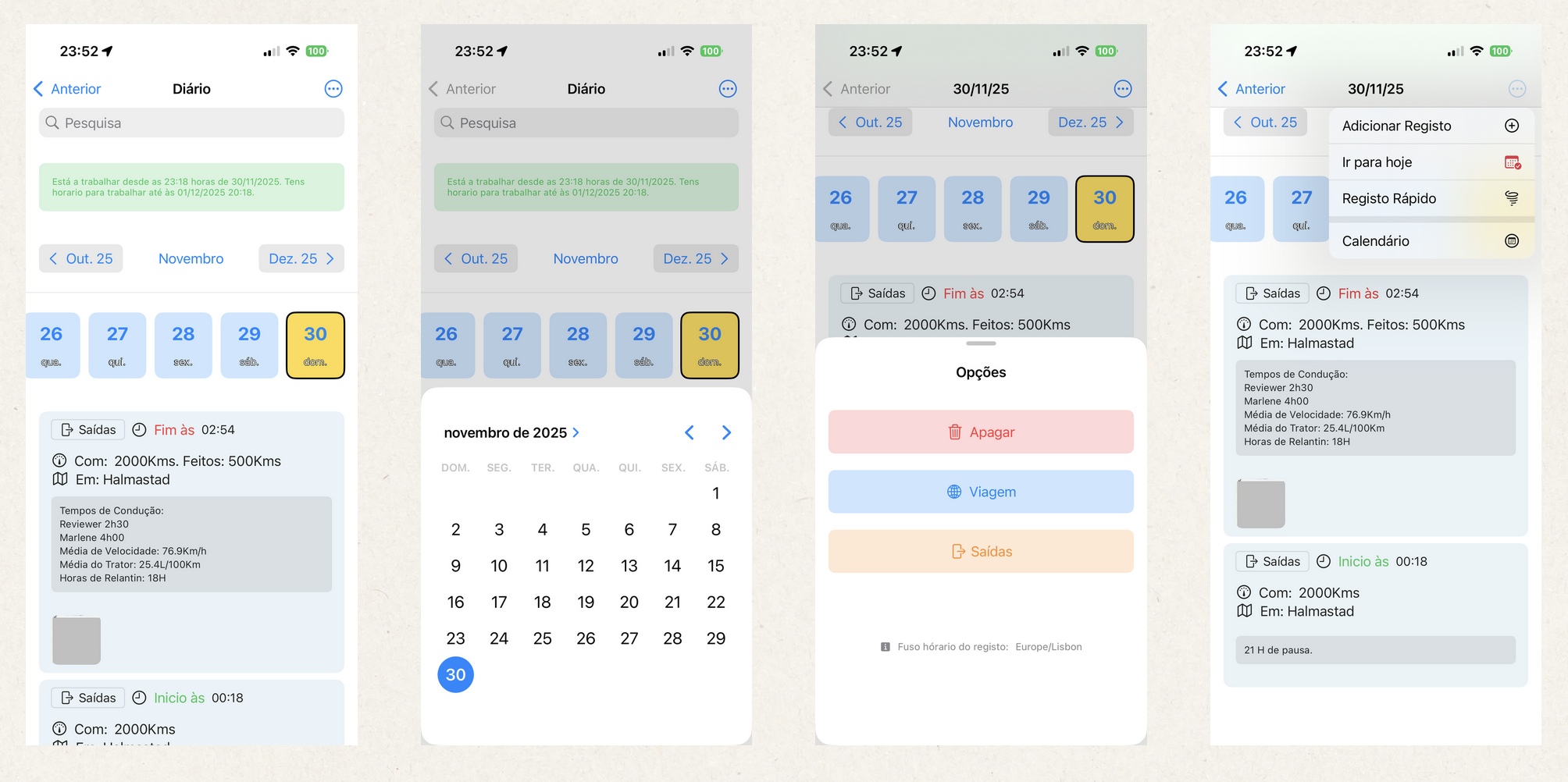
The Diary is like your paper agenda, where you will record all the information you find important. You can keep years of your history right in your pocket. The most powerful notebook for drivers you will ever see.
You can record:
- Activity logs, Start and End of shift with location and kilometres.
- Driving hours records.
- Load data records such as weight, cubic meters, litres, temperature...
- Records of empty pallet movements, for those who exchange pallets during loading/unloading (Europallets).
- Records of instructions you receive from your superiors.
- Record whenever you are controlled by the police.
- Record whenever you know you have committed an infraction.
- Trailer swap records.
- Any other record you wish.
- And of course, everything is easily searchable. You can quickly find anything related to a specific day or event, even if it happened 5 years ago!
- Attach documents to your records.
Literally, the most powerful notebook for drivers you will ever see.
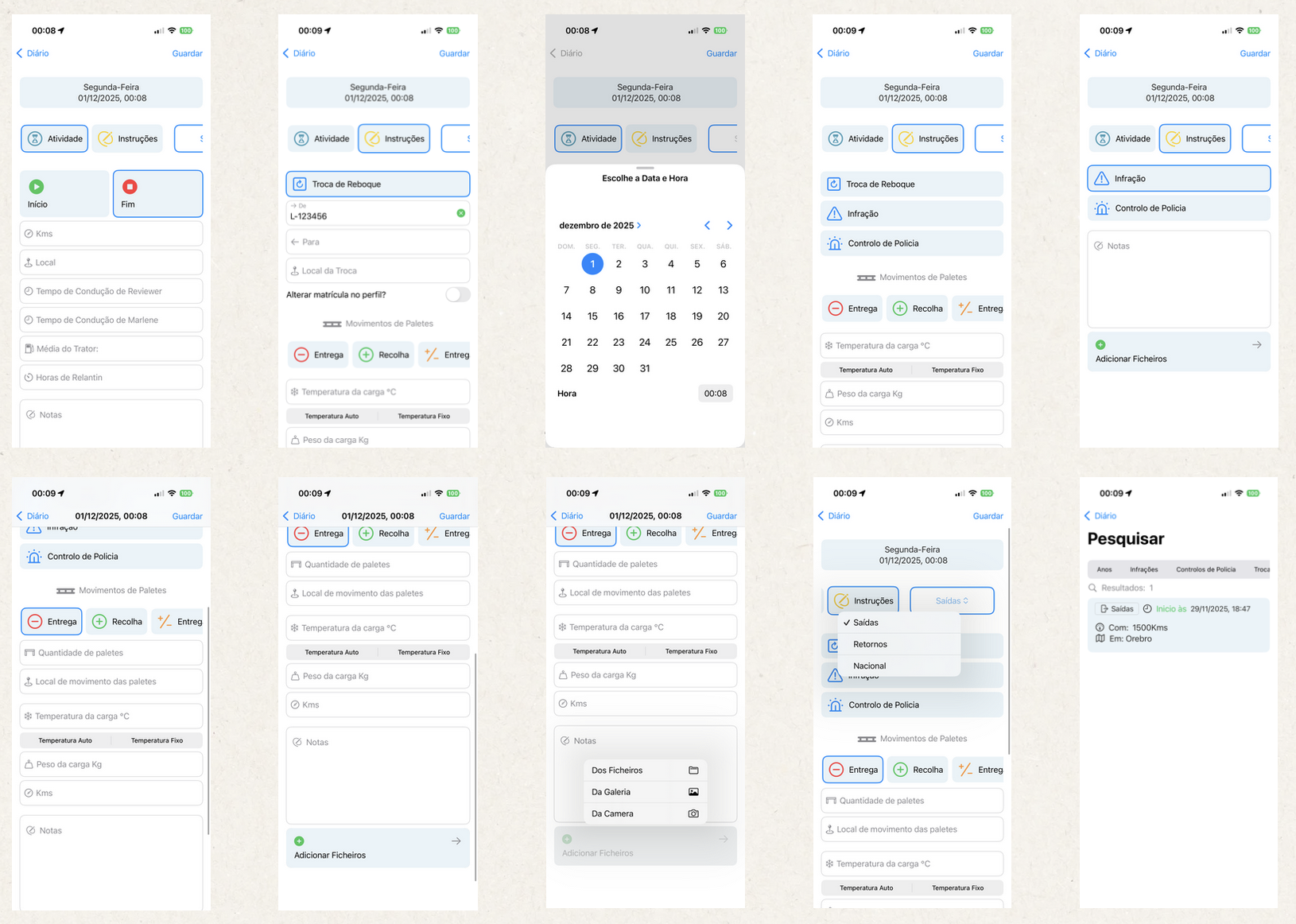
In the set of screenshots above, in the second image from the left, you see a Datepicker; in that Datepicker you select a day and go directly to the chosen day. To open the Datepicker, tap on the month name.
In the third image from the left, you see a set of options — these are the options for each record. By pressing each record, those options appear.
In the top menu there are 4 buttons:
- Add Record – Go to the form to add new entries.
- Go to Today – Quickly navigate to today.
- Quick Record – Start an activity quickly, respecting the time zone you set in the settings. If you are in Spain but your configured time zone is Portugal, recording at 16:00 in Spain will be saved with Portugal’s time, 15:00.
- Calendar – Opens the Calendar module.
Avalia este artigo para sabermos se te ajudámos. Obrigado!
Fuel
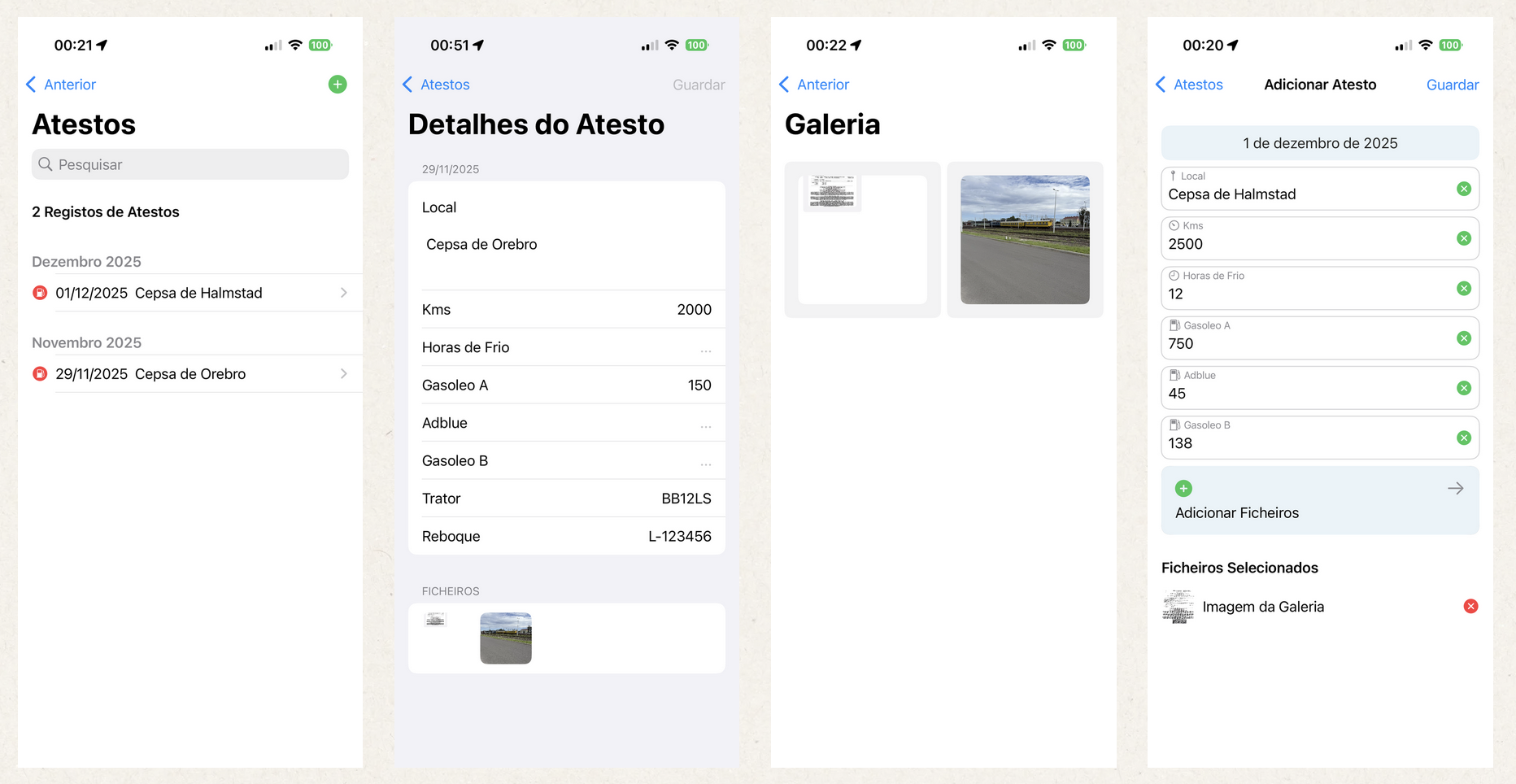
In the Fuel Logs module, you can record all refuellings for the vehicle and trailer (if applicable), and you can also attach the corresponding receipts to each refuelling.
Later, you will be able to search them easily.
Avalia este artigo para sabermos se te ajudámos. Obrigado!
Pallets
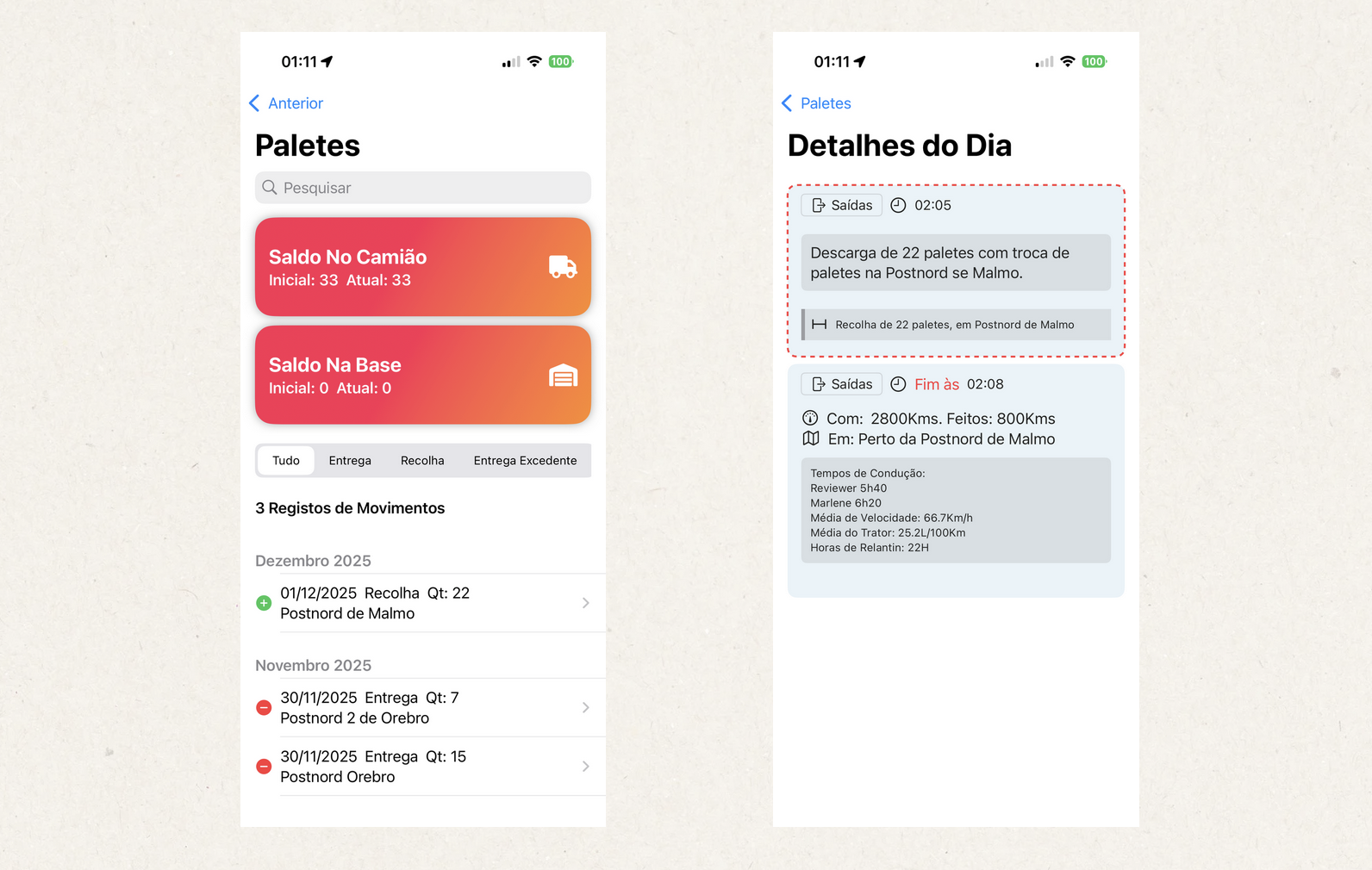
This module was developed for those who handle loads with pallet exchanges, especially in Europe.
In the Pallets module, you can view all pallet movements recorded in the Diary.
You can also search, and by clicking on each line, you will be redirected to the detailed view of that day to better analyse the movement.
In this way, you have full control over your pallets.
- Truck balance – This balance indicates how many empty pallets you currently have available on the truck.
- Base balance – If you have excess pallets and usually deliver them to your company’s base, this allows you to always know when and how many you delivered.
Avalia este artigo para sabermos se te ajudámos. Obrigado!
Notes
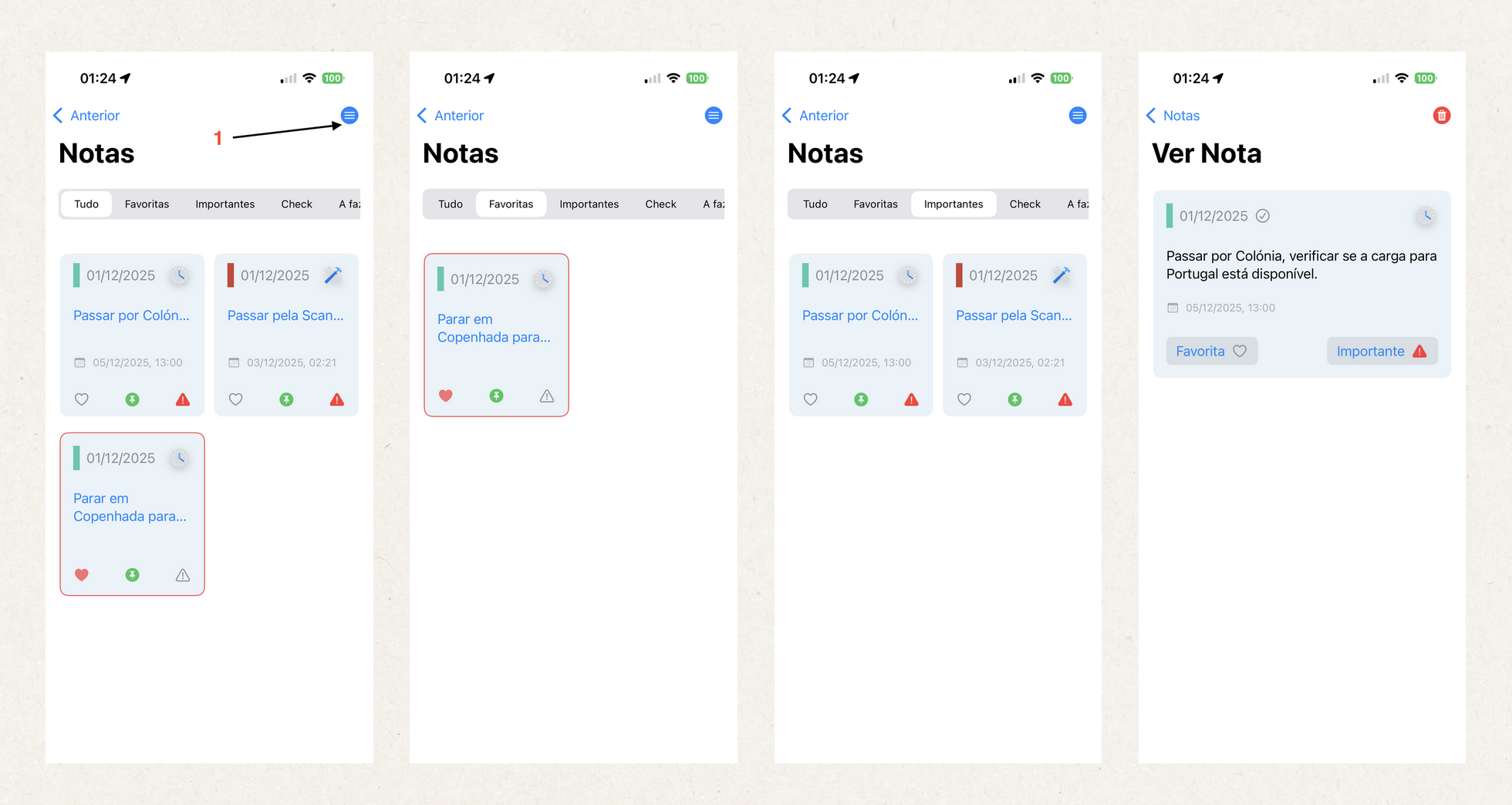
In the Notes module you always have all your tasks organized.
- Opening the menu
- Add Note – Go to the form to add a new note.
- Categories – Go to the form to add categories. It also contains the list of categories / edit categories.
- Calendar – Go to the Calendar module.
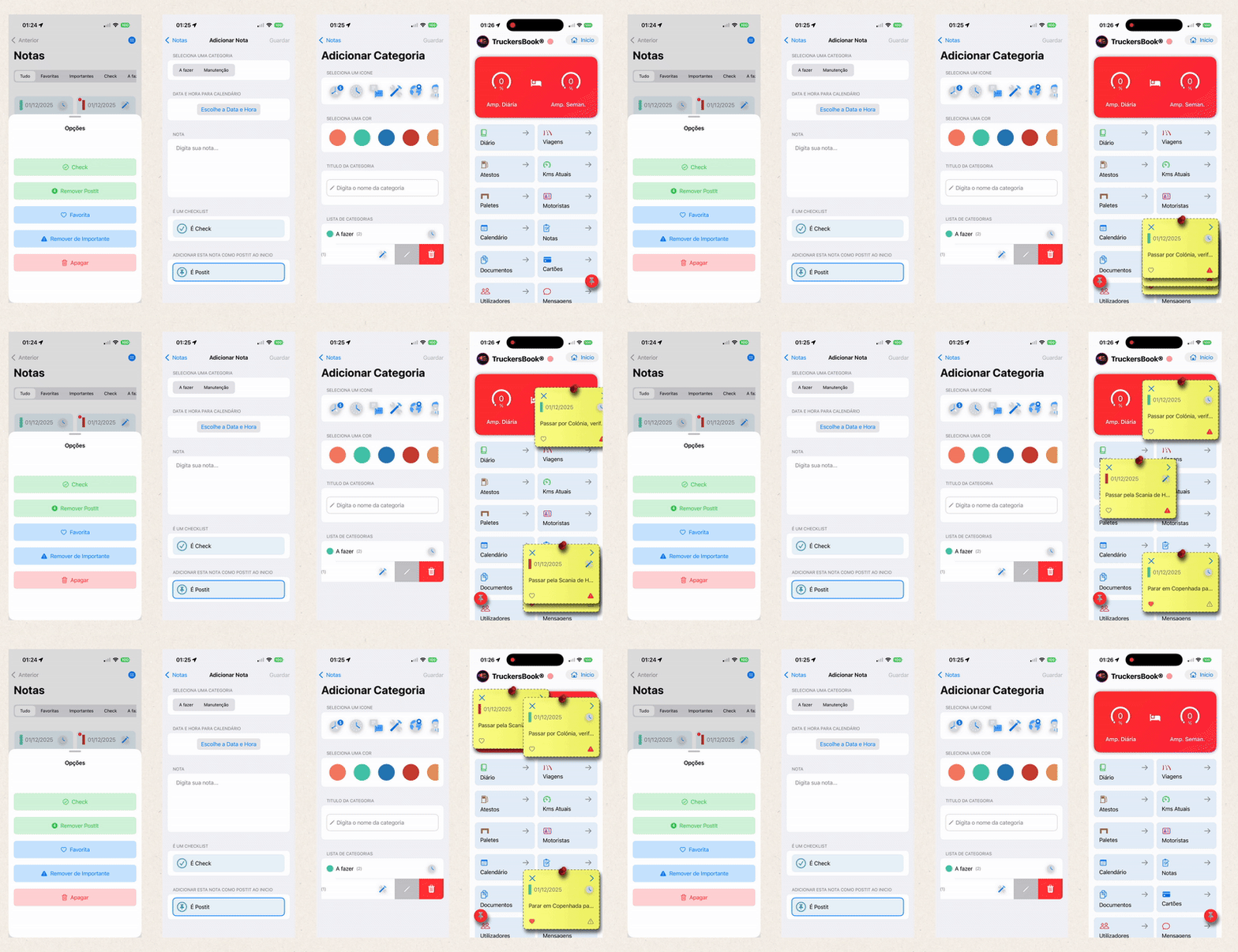
To view the options for each note, simply press the note.
- Check – If you mark the note as a Check type, it will appear in the Calendar module as a checklist, allowing you to control whether it has been completed or not.
- Remove Post-it / Add Post-it – If you mark the note as a Post-it type, it will appear on the home screen in Post-it format.
- Favourite / Remove Favourite – Marks the note as favourite.
- Important / Remove Important – Marks the note as important.
- Delete – Permanently deletes the note.
On the Add Note screen, the Date and Time field for the Calendar is optional. If you do not choose any date and time, the note will appear in the calendar at the date and time it was created. If you set a date and time for the calendar, the note will appear in the calendar at the defined time.
Avalia este artigo para sabermos se te ajudámos. Obrigado!
Calendar
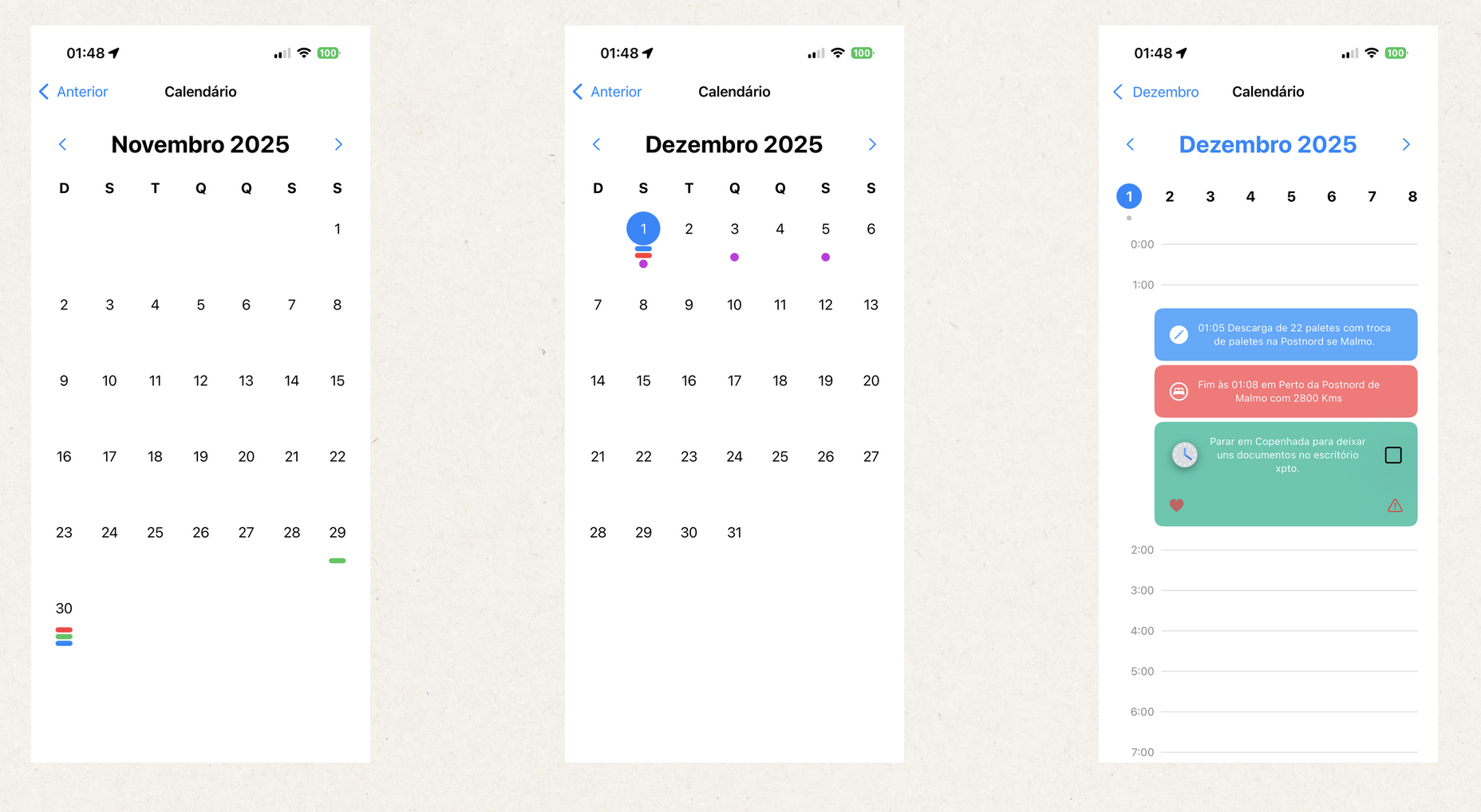
In the Calendar module you will have an overview of your activity throughout the month.
- Green bar – Indicates that on that day you have at least one Start of Activity record in the Diary.
- Red bar – Indicates that on that day you have at least one End of Activity record in the Diary.
- Blue bar – Indicates that on that day you have at least one Instructions record in the Diary.
- Purple dot – Indicates that you have a Note.
If you click on the day, the day details will open.
In the day details, if you click on each record, the record screen will open.
If the note displays a "check" box, it indicates that the note is a checklist type, and you can mark the task as completed directly in the Calendar.
Avalia este artigo para sabermos se te ajudámos. Obrigado!
Documents
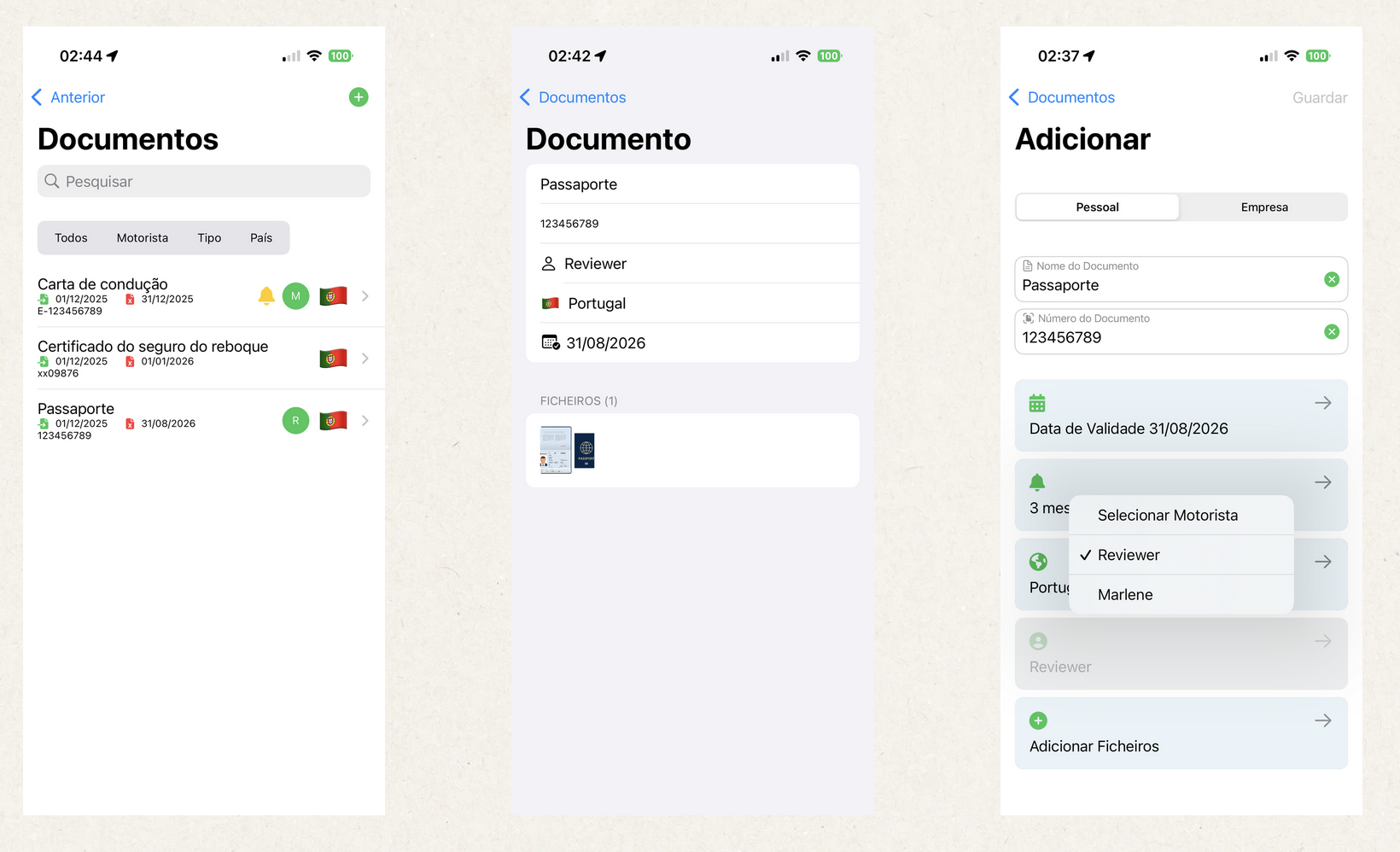
The Documents module is responsible for managing and keeping all your documents secure.
You don’t need to worry about expiration dates — the system will notify you when a document is about to expire.
The options available:
- Document name
- Document number
- Expiry date
- When the system should start notifying you that the document is expiring
- If the document is related to a specific country
- Which driver the document belongs to
- Document images
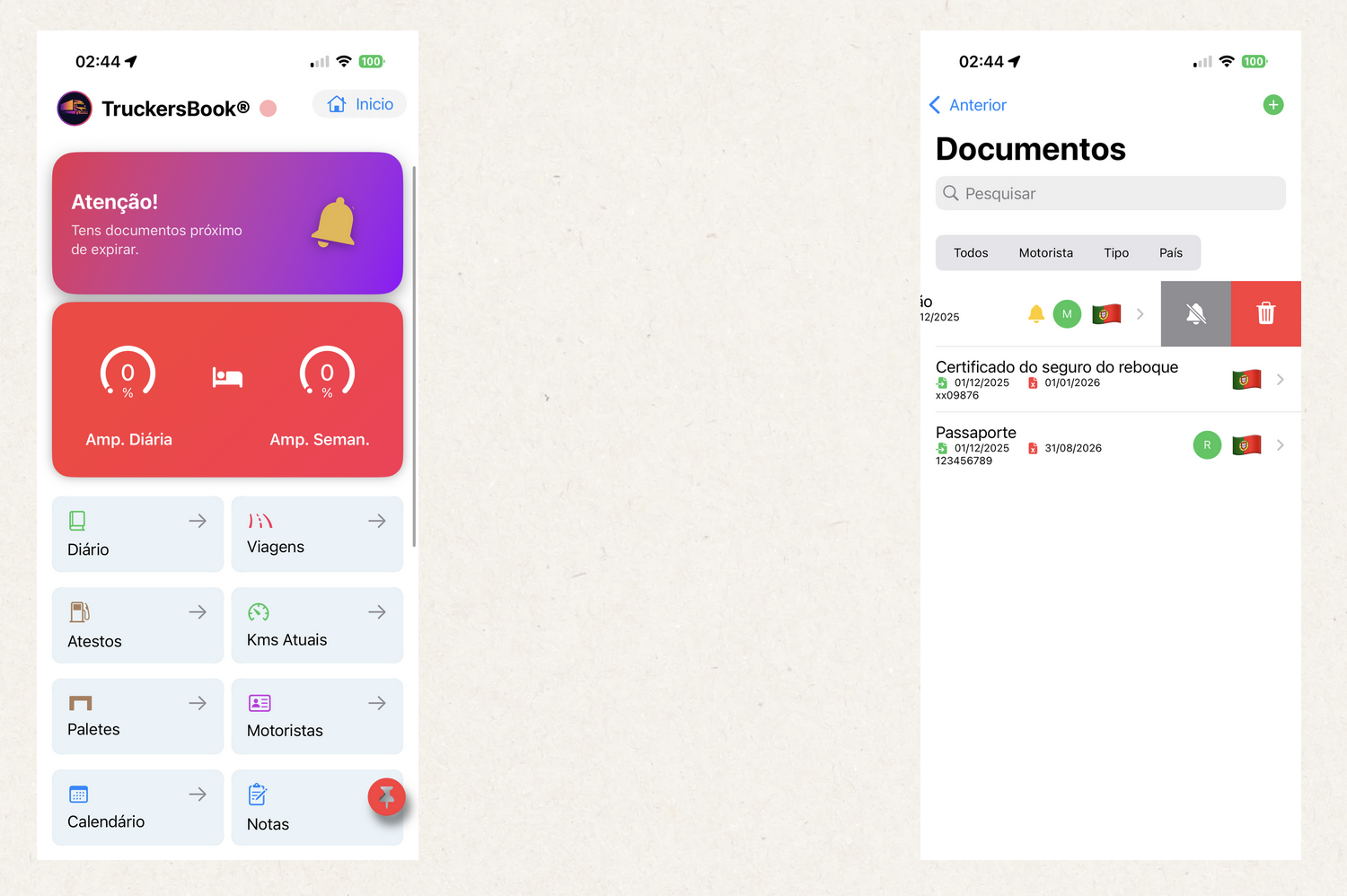
If the document is within the notification period, an email will be sent (only once per document) informing you that you have documents about to expire. This option is controlled in your account settings.
A clickable section will also appear at the top of the home screen, redirecting you to the list of documents that are expiring.
If you want one or more documents to stop sending notifications, in the documents list you can swipe the document from right to left and tap the bell button .
Avalia este artigo para sabermos se te ajudámos. Obrigado!
Cards
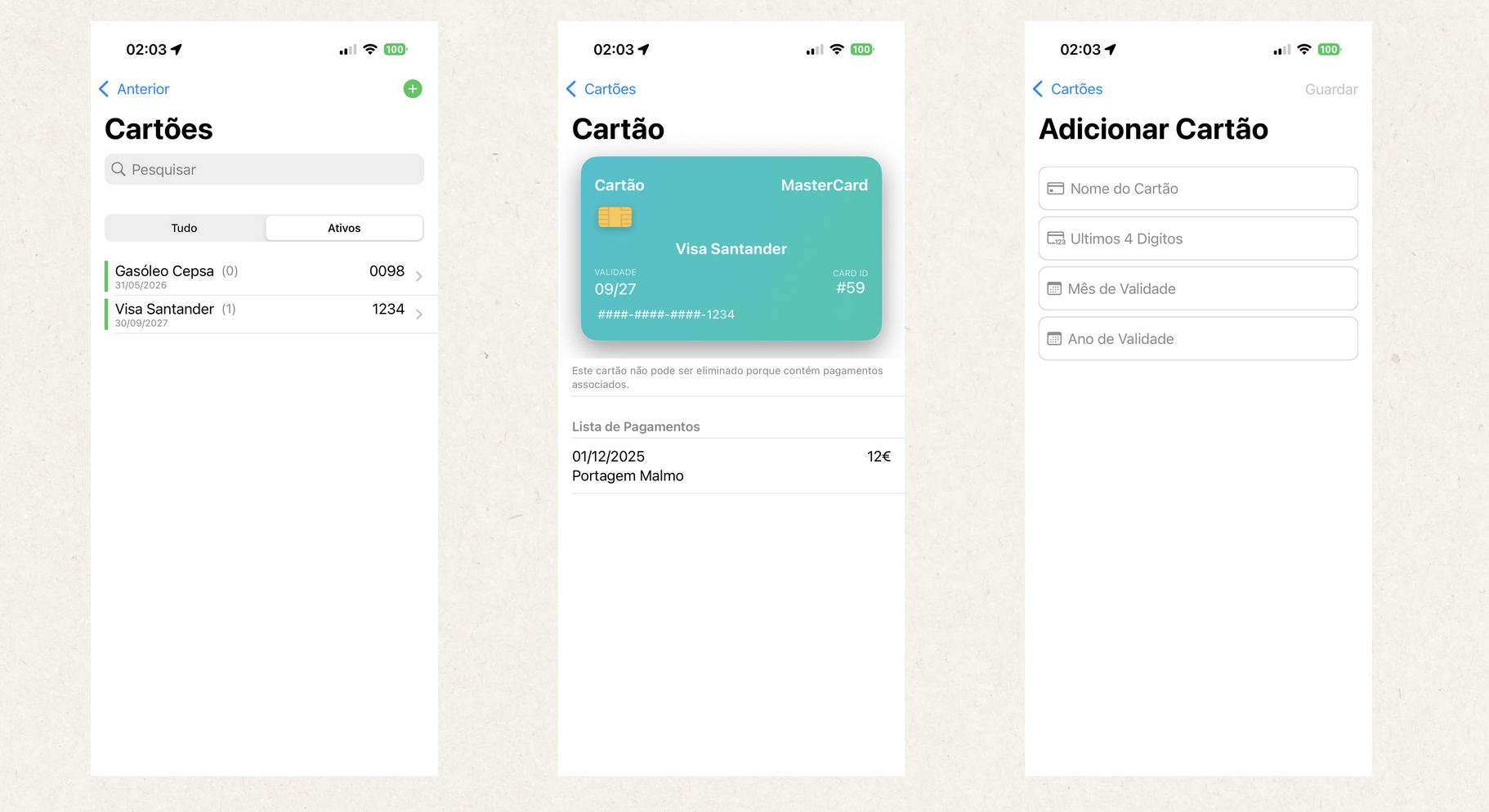
The Cards module allows you to manage your payment cards / fuel cards.
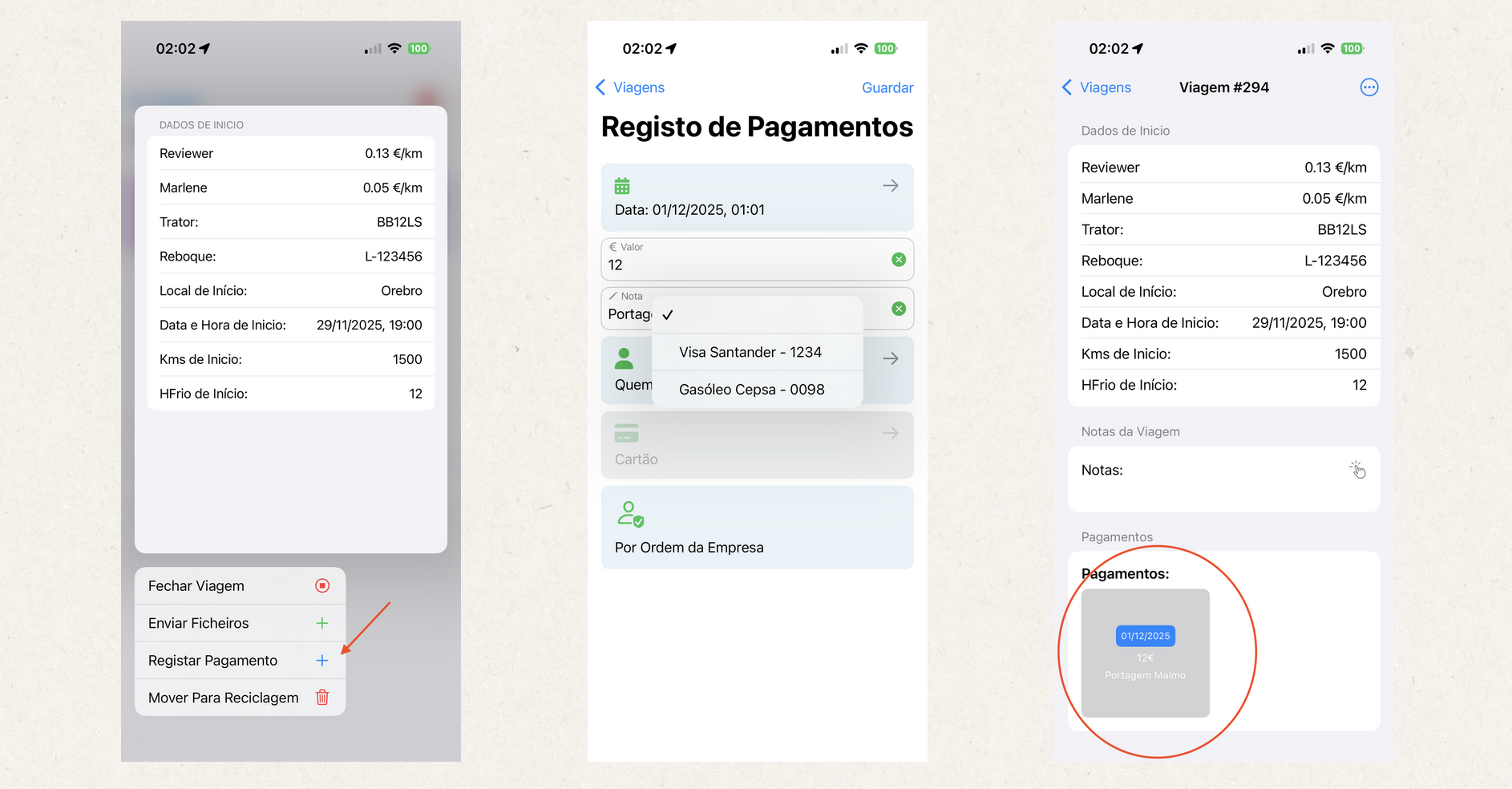
In the Trips module, you can add payments that occurred during the trip. In these payments you can associate the card you used for the transaction.
If, in a payment, you choose a card that belongs to you (personal) and not to the company, and you select the option "On Behalf of the Company", the company must reimburse you. When the corresponding trip is paid, that amount will be included in the calculation.
Avalia este artigo para sabermos se te ajudámos. Obrigado!
Users
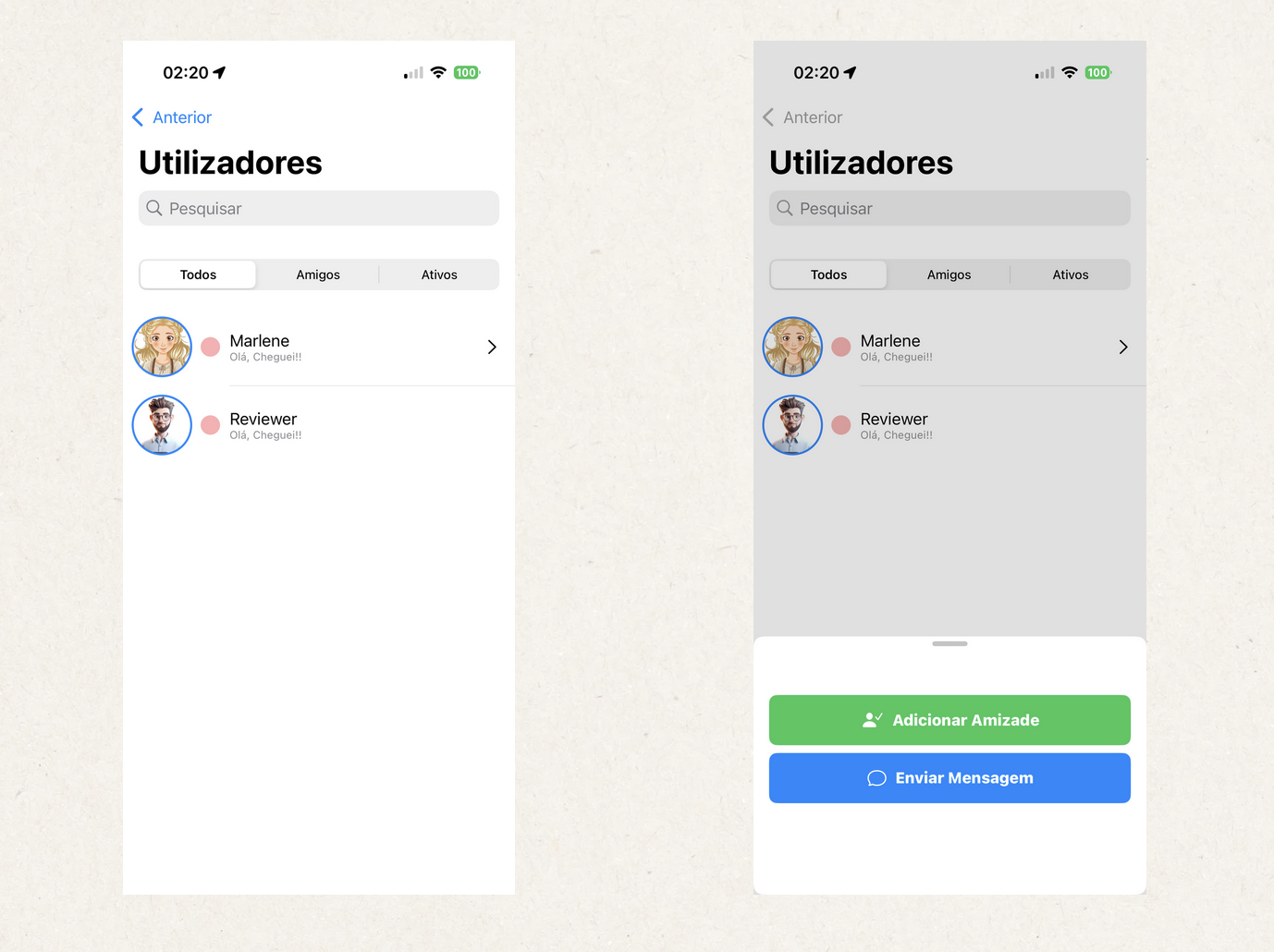
Displays the list of users, showing only those who allow their profile to appear in the list.
The dot next to the avatar indicates:
- Red - The user is on a break.
- Flashing green - The user has an active activity started in the Diary.
Avalia este artigo para sabermos se te ajudámos. Obrigado!
Messages
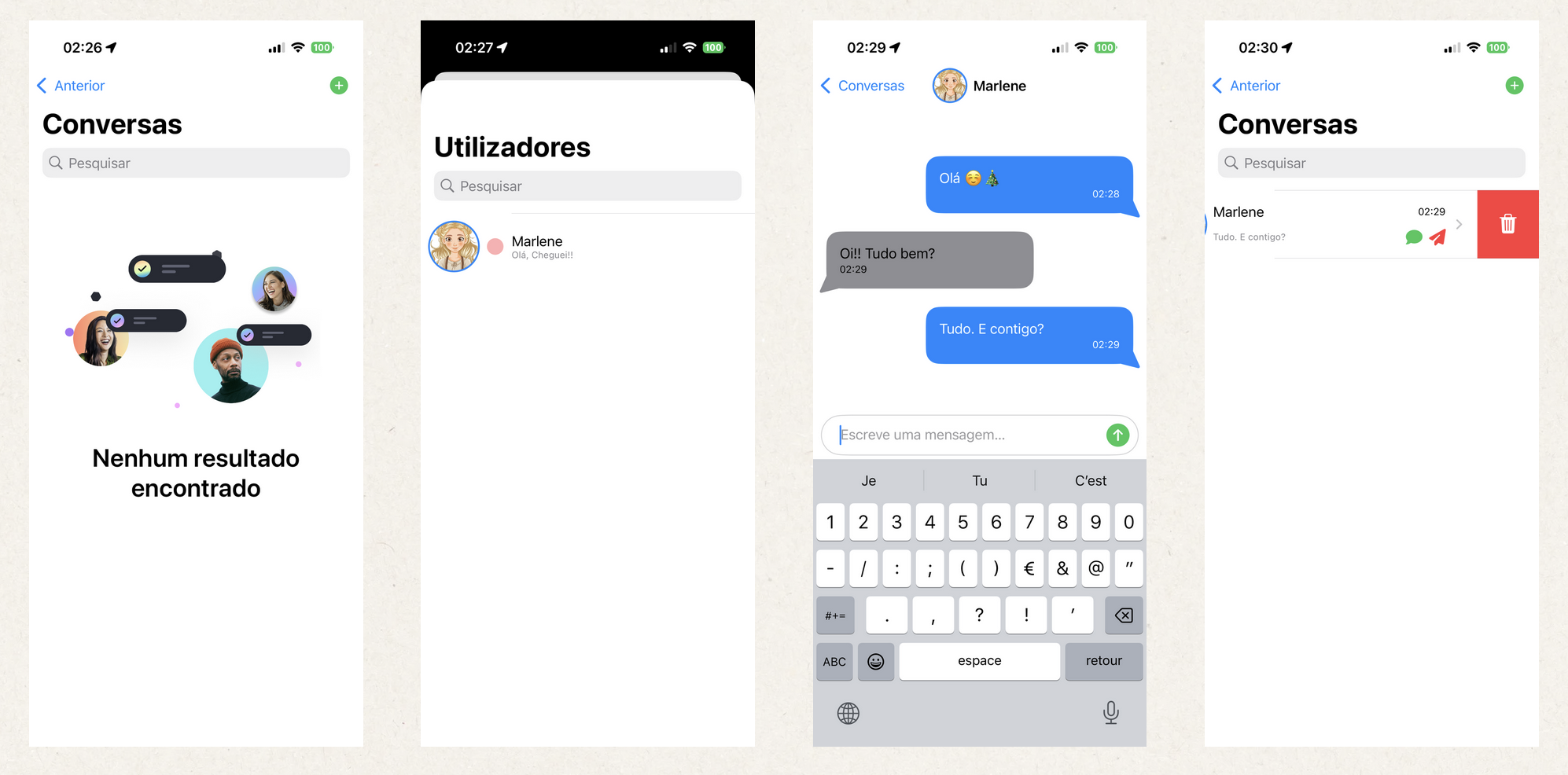
The Messages module is where you can interact with other TruckersBook users.
In your account settings, you can choose whether or not to allow receiving messages and friend requests.
Avalia este artigo para sabermos se te ajudámos. Obrigado!
Files
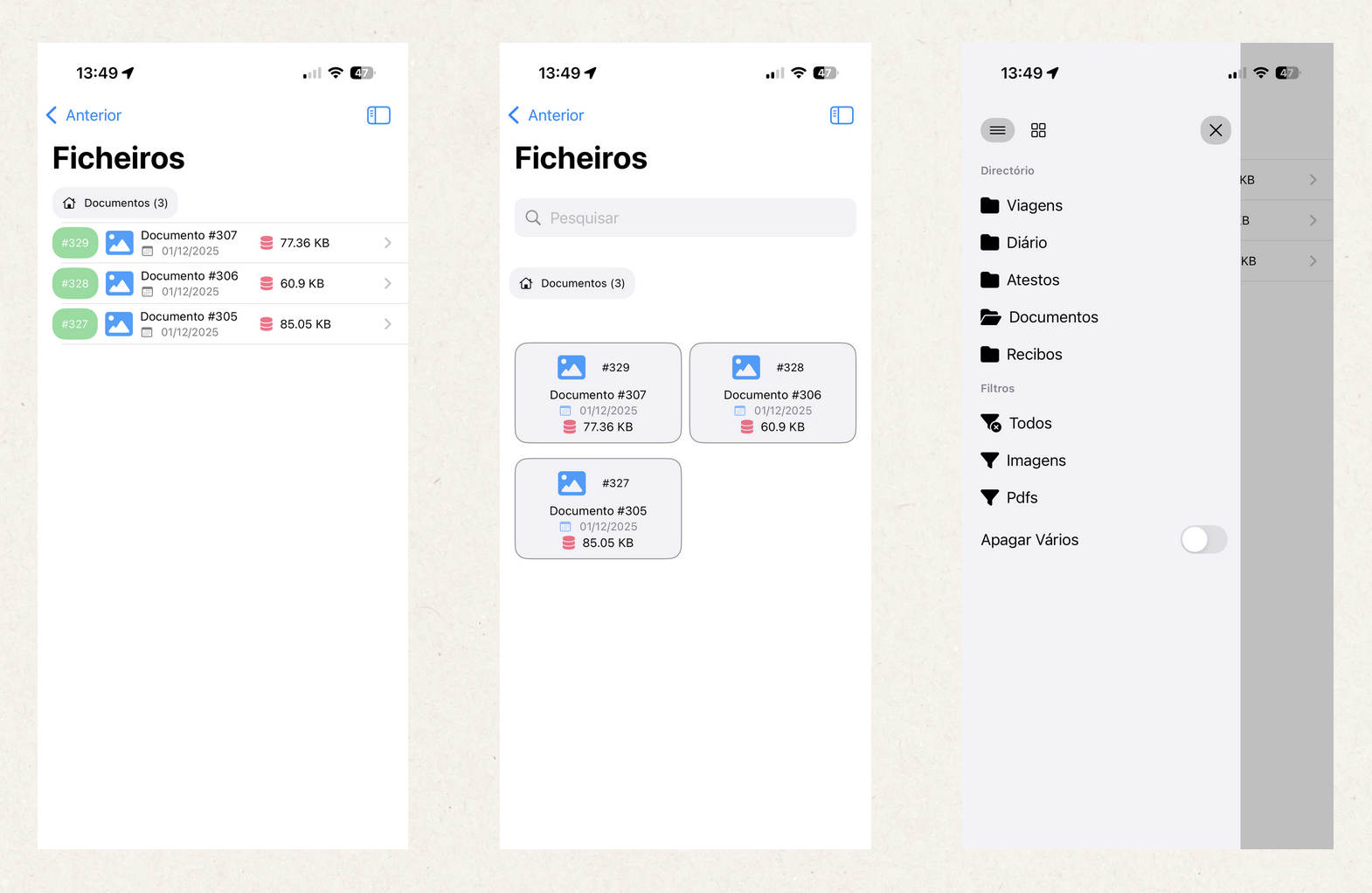
The Files module is a file manager where all files from the various modules (Trips, Diary, Fuel Logs, Documents, Payslips) are centralized.
You can choose between list view or grid view.
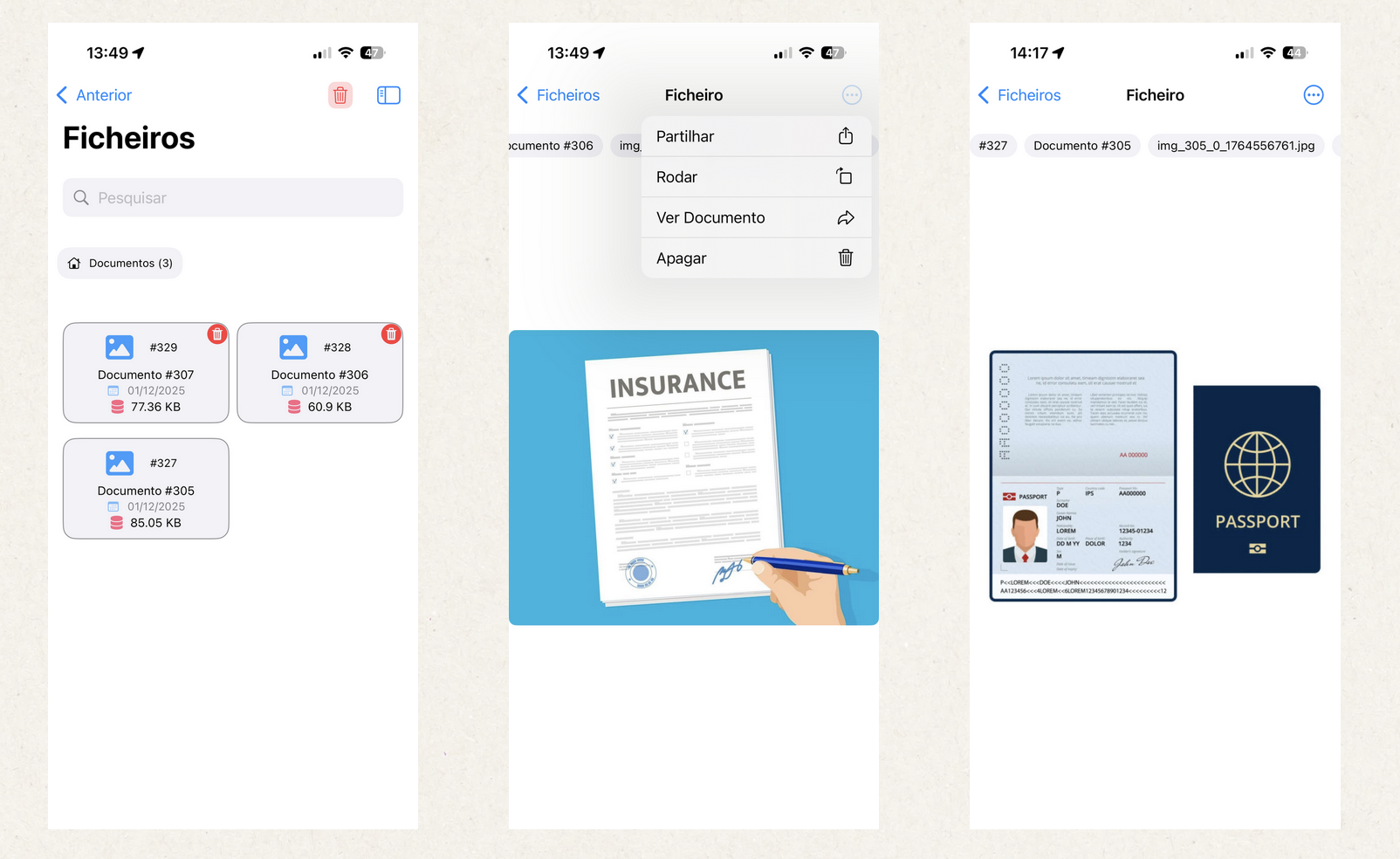
You can delete files one by one or multiple at once.
You can share the file using the iPhone’s native share menu.
You can see what the file belongs to:
- View Trip
- View Diary
- View Fuel Log
- View Document
- View Payment
It is a centralized way to manage all files within the TruckersBook ecosystem!
Avalia este artigo para sabermos se te ajudámos. Obrigado!
Statistics
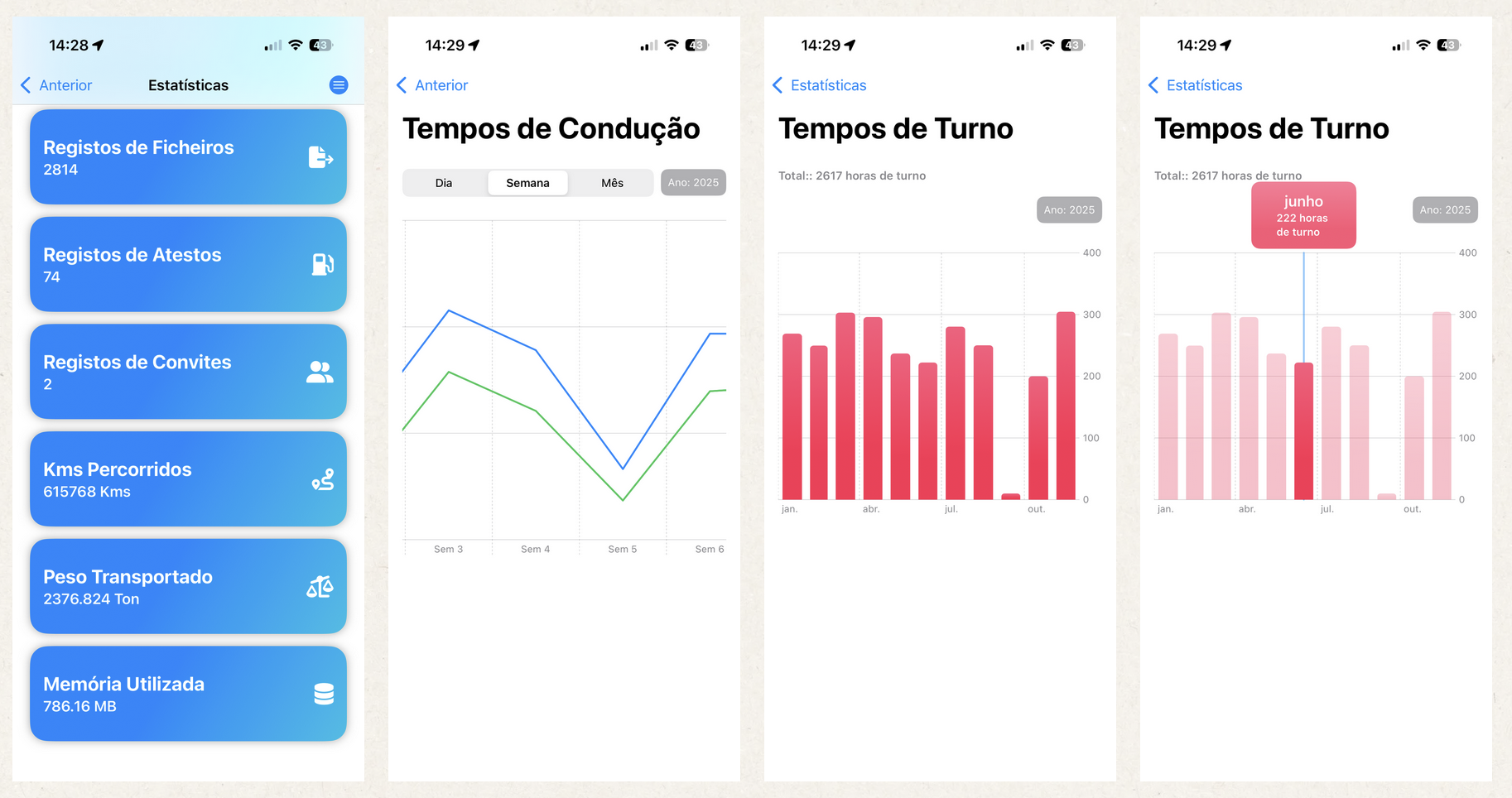
The Statistics module is a place for analysis, and it will become very interesting once you have 5 years of records and can analyse and compare your activities year by year, month by month...
You also have information about your usage of the platform.
It's worth it! 😊😊
Avalia este artigo para sabermos se te ajudámos. Obrigado!
CMRs
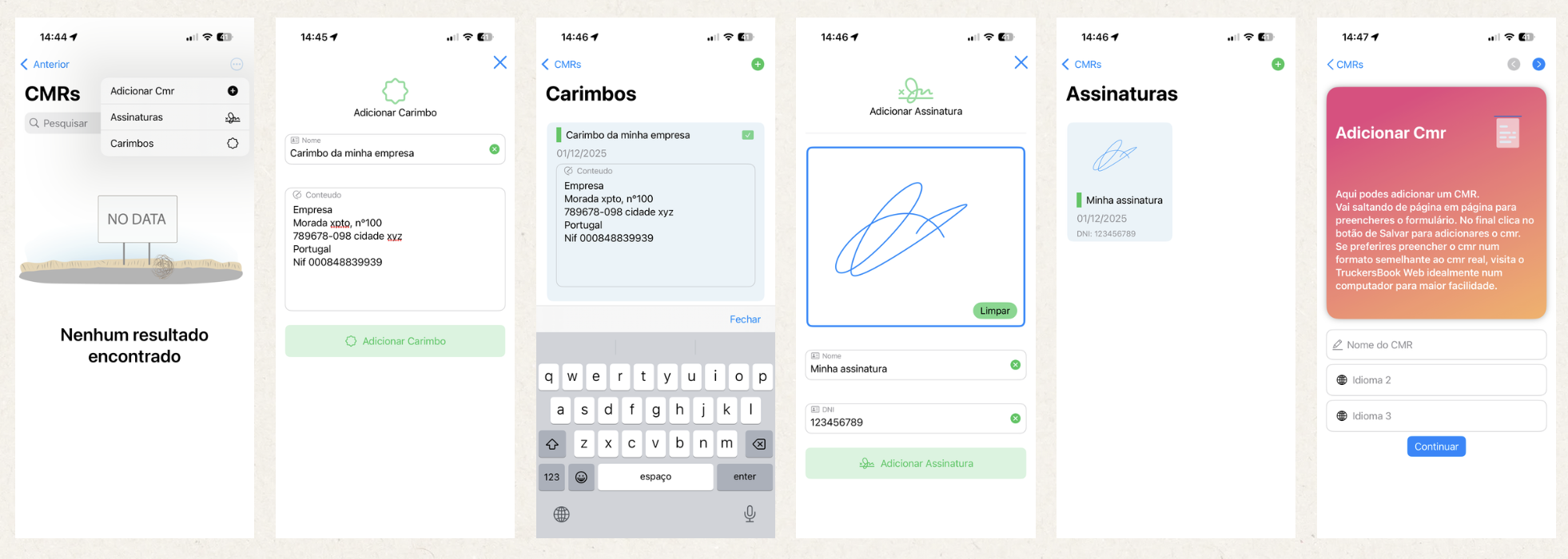
CMRs are always the same confusion — papers and more papers... And where is the CMR? 🙏 ➡️ TruckersBook
This module is the pinnacle of organization.
You can add and later edit.
You can share by email, by messages, ...
You can enable CMR viewing via QR code, and disable it whenever you want!
Explaining how it works:
- Deverás adicionar primeiro os dados da transportadora, aquilo a que chamamos Carimbos. É opcional, podes adicionar um cmr sem teres carimbos adicionados.
- Evita ter que rubricar à mão, podes adicionar a tua rúbrica, guarda-la e usares sempre que te apetecer,
- aquilo a que chamamos Assinaturas.
- É opcional, podes adicionar um cmr sem teres carimbos adicionados.
- E agora sim, adicionar CMR.
Avalia este artigo para sabermos se te ajudámos. Obrigado!
Days
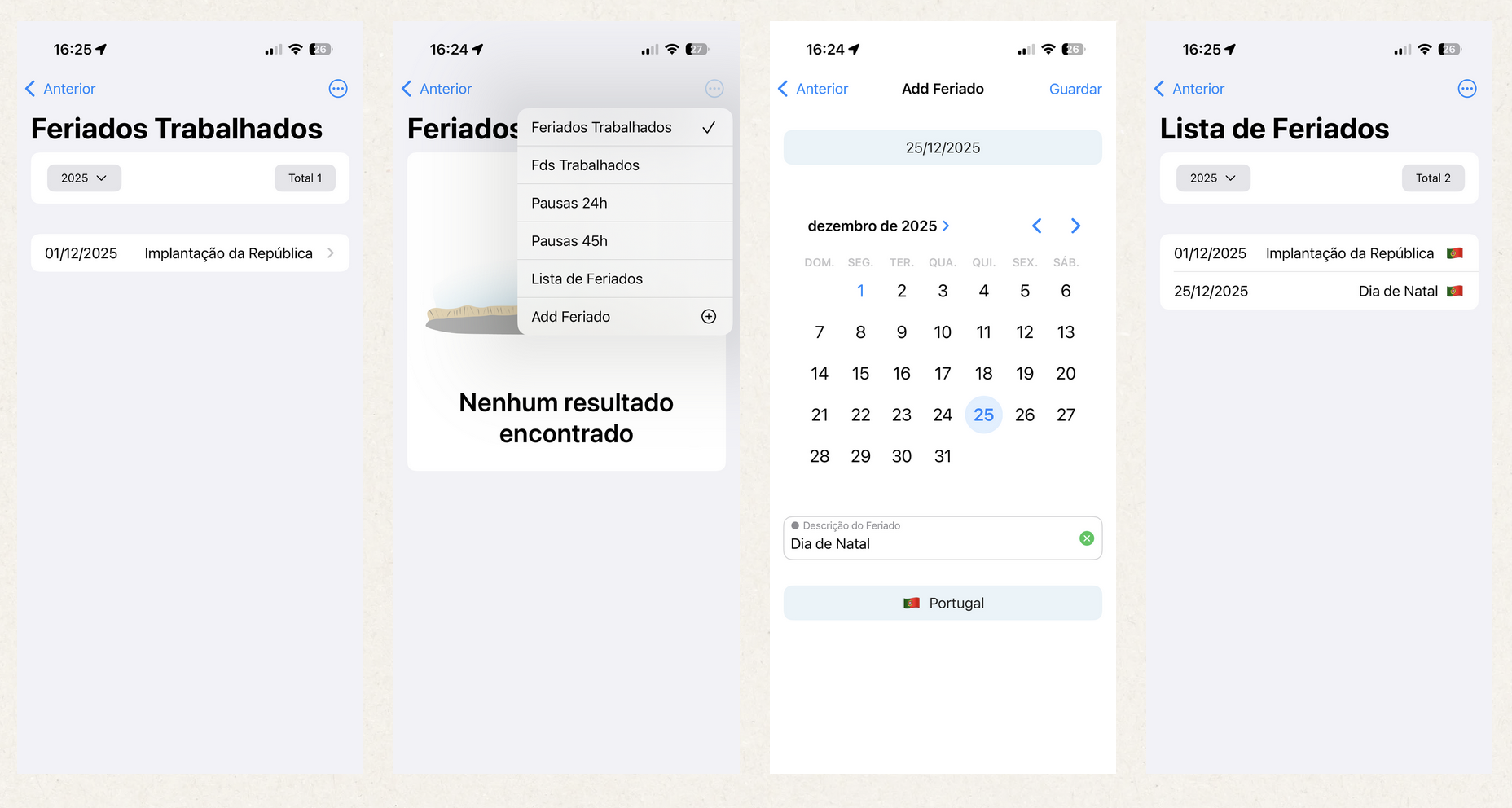
The Days module indicates whether you had activity on a public holiday or a weekend.
You must add the public holidays of your country or the country where you are working.
Avalia este artigo para sabermos se te ajudámos. Obrigado!
Export
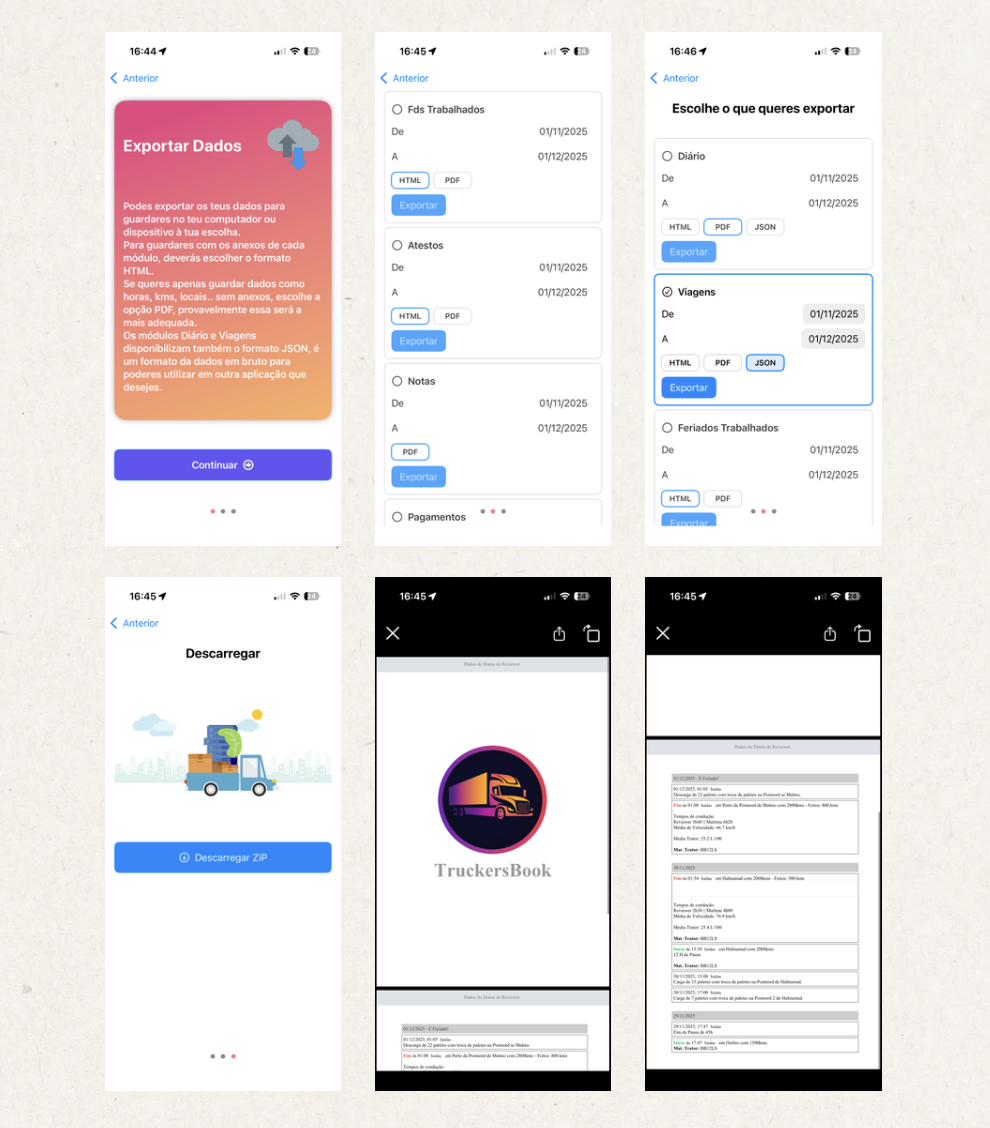
You can export the data from your records in the Export module.
You can export:
- Diary records
- Trip records
- List of worked public holidays
- List of worked weekends
- List of Fuel Logs
- List of Notes from the notepad
- List of Payments
Formats:
- HTML – In the HTML format, the records are exported to an HTML page, including the files attached to each record.
- PDF – In the PDF format, a PDF file is generated without attachments/files, containing only a table with the records.
- JSON – In the JSON format, attachments are also not exported, only the record data in JSON format. Example of the format.
Avalia este artigo para sabermos se te ajudámos. Obrigado!
Notifications
It is recommended to keep notifications enabled for the TruckersBook app. This way, you will be notified when your daily amplitude reaches 50% and 85%.
You will also receive notifications when you receive a message and when you have documents about to expire.
Avalia este artigo para sabermos se te ajudámos. Obrigado!
App Android
Introduction
Avalia este artigo para sabermos se te ajudámos. Obrigado!
Contact Us
If you have any questions, contact us first and we’ll reply as soon as possible!